Routers

A router is a networking device that forwards data packets between computer networks. Routers perform the traffic directing functions on the Internet. Data sent through the internet, such as a web page or email, is in the form of data packets. A packet is typically forwarded from one router to another router through the networks that constitute an internetwork (e.g. the Internet) until it reaches its destination node.

A router is connected to two or more data lines from different IP networks. When a data packet comes in on one of the lines, the router reads the network address information in the packet header to determine the ultimate destination. Then, using information in its routing table or routing policy, it directs the packet to the next network on its journey.

The most familiar type of IP routers are home and small office routers that simply forward IP packets between the home computers and the Internet. An example of a router would be the owner’s cable or DSL router, which connects to the Internet through an Internet service provider (ISP). More sophisticated routers, such as enterprise routers, connect large business or ISP networks up to the powerful core routers that forward data at high speed along the optical fiber lines of the Internet backbone.

A router is the first line of security from intrusion into a network. Enabling the highest level of security on the router turns on things like the firewall, and is the best way to keep your computer system and information safe from attack.

How Routers Work?

Routers connect a modem like a fiber, cable, or DSL modem to other devices to allow communication between those devices and the internet. Most routers, including wireless routers, usually feature several network ports to connect numerous devices to the internet simultaneously.

A router typically connects physically, using a network cable, to the modem via the internet or WAN port and then physically, again through a network cable, to the network interface card in whatever wired network devices you have. A wireless router can connect using various wireless standards to devices that also support the particular standard used.

The IP address assigned to the WAN or internet connection is a public IP address. The IP address assigned to the local network connection is a private IP address. The private IP address assigned to a router is usually the default gateway for the various devices on the network.

Wireless routers, and wired routers with multiple connections, also act as simple network switches allowing the devices to communicate with each other. For example, several computers connected to a router can be configured to share files and printers among each other.

Routers are like small computers, with a CPU and memory to deal with incoming and outgoing data. Different software, such as DD-WRT, can be loaded on the router, much like an operating system on a computer.

A router operates on the Network layer (layer 3) of the OSI model and uses routing tables to understand where traffic is coming from and where it should go.

Managing a Router

There will most likely come a time where you need to make changes to how your network works. This is done by accessing the software on the router.

A few reasons you need to log in to your router is if you want to change the router’s login password, encrypt the network, set up port forwarding rules, change the Wi-Fi password, pick a different wireless network name, or update the firmware on the router.

Some other common tasks related to managing a router involve rebooting the router and completely resetting the router’s software.

Buying a Router

There are several things to consider before buying a router, such as how fast it needs to be to support your internet speed and devices, as well as its power to ensure that all your devices can receive internet access.

For example, maybe you’re buying a Wi-Fi router to serve lots of devices, like gaming consoles, computers, tablets, and phones. If your house is small, you might be able to get away with one router, whereas larger homes or businesses with several rooms might be better off with a mesh network or a Wi-Fi extender.

See these lists if you’re having trouble deciding on a new router:

  • Long-Range Routers
  • Secure Routers
  • Routers for Under $50
  • Budget Routers
  • DD-WRT Routers
  • Gaming Routers
  • Travel Routers
  • Parental Control Routers
  • VPN Routers

Mobile Wi-Fi hotspots are similar to routers because they connect multiple devices to the same internet connection.

Types of Routers

Core routers used by Internet Service Providers (ISPs) are the fastest and most powerful, sitting at the center of the internet and forwarding information along the main fiber optic backbone. Enterprise routers connect large organizations’ networks to these core routers.

An edge router, also known as an access router, is a lower-capacity device that resides at the boundary of a LAN and connects it to a the public internet or a private wide area network (WAN) and/or external  local area network (LAN). Home and small office routers are considered subscriber edge routers.

Branch routers link an organization’s remote office locations to its WAN, connecting to the primary campus network’s edge routers. Branch routers often provide additional features, like time-division multiplexing, wireless LAN management capabilities and WAN application acceleration.

A logical router is a configured partition of a traditional network hardware, or physical, router. It replicates the hardware’s functionality, creating multiple routing domains within a single router. Logical routers perform a subset of the tasks that can be handled by the physical router, and each can contain multiple routing instances and routing tables.

A wireless router works in the same way as the router in a hard-wired home or business local area network (LAN), but allows greater mobility for notebook or portable computers. Wireless routers use the 802.11g specification, a standard that offers transmission over short distances.
IP Address

An Internet Protocol address (IP address) is a numerical label assigned to each device connected to a computer network that uses the Internet Protocol for communication. An IP address serves two main functions: host or network interface identification and location addressing.

Internet Protocol version 4 (IPv4) defines an IP address as a 32-bit number. However, because of the growth of the Internet and the depletion of available IPv4 addresses, a new version of IP (IPv6), using 128 bits for the IP address, was standardized in 1998. IPv6 deployment has been ongoing since the mid-2000s.

IP addresses are written and displayed in human-readable notations, such as 172.16.254.1 in IPv4, and 2001:db8:0:1234:0:567:8:1 in IPv6. The size of the routing prefix of the address is designated in CIDR notation by suffixing the address with the number of significant bits, e.g., 192.168.1.15/24, which is equivalent to the historically used subnet mask 255.255.255.0.

The IP address space is managed globally by the Internet Assigned Numbers Authority (IANA), and by five regional Internet registries (RIRs) responsible in their designated territories for assignment to local Internet registries, such as Internet service providers, and other end users. IPv4 addresses were distributed by IANA to the RIRs in blocks of approximately 16.8 million addresses each, but have been exhausted at the IANA level since 2011. Only one of the RIRs still has a supply for local assignments in Africa. Some IPv4 addresses are reserved for private networks and are not globally unique.

Network administrators assign an IP address to each device connected to a network. Such assignments may be on a static (fixed or permanent) or dynamic basis, depending on network practices and software features.

Function

An IP address serves two principal functions. It identifies the host, or more specifically its network interface, and it provides the location of the host in the network, and thus the capability of establishing a path to that host. Its role has been characterized as follows: “A name indicates what we seek. An address indicates where it is. A route indicates how to get there.” The header of each IP packet contains the IP address of the sending host, and that of the destination host.

IP versions

Two versions of the Internet Protocol are in common use in the Internet today. The original version of the Internet Protocol that was first deployed in 1983 in the ARPANET, the predecessor of the Internet, is Internet Protocol version 4 (IPv4).

The rapid exhaustion of IPv4 address space available for assignment to Internet service providers and end user organizations by the early 1990s, prompted the Internet Engineering Task Force (IETF) to explore new technologies to expand the addressing capability in the Internet. The result was a redesign of the Internet Protocol which became eventually known as Internet Protocol Version 6 (IPv6) in 1995. IPv6 technology was in various testing stages until the mid-2000s, when commercial production deployment commenced.

Today, these two versions of the Internet Protocol are in simultaneous use. Among other technical changes, each version defines the format of addresses differently. Because of the historical prevalence of IPv4, the generic term IP address typically still refers to the addresses defined by IPv4. The gap in version sequence between IPv4 and IPv6 resulted from the assignment of version 5 to the experimental Internet Stream Protocol in 1979, which however was never referred to as IPv5.

Other versions v1 to v9 were defined, but only v4 and v6 ever gained widespread use. v1 and v2 were names for TCP protocols in 1974 and 1977, as there was to separate IP specification at the time. v3 was defined in 1978, and v3.1 is the first version where TCP is separated from IP. v6 is a synthesis of several suggested versions, v6 Simple Internet Protocol, v7 TP/IX: The Next Internet, v8 PIP — The P Internet Protocol, and v9 TUBA — Tcp & Udp with Big Addresses.

What is Your IP Address?

To view your IP address you can use the ipconfig (IPCONFIG) command line tool.  Ipconfig displays all current TCP/IP network configuration values and refreshes Dynamic Host Configuration Protocol (DHCP) and Domain Name System (DNS) settings.

To launch the command prompt from a Windows-based computer click: Start > All Programs > Accessories > Command Prompt. Type ipconfig and press the Enter key.

You can also use Google search to find your IP address. Type “what is my IP address” as a search query and Google will show the IP address of the computer from which the query was received as the top search result.

Metropolitan Area Network (MAN)

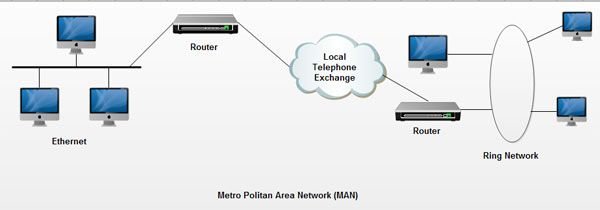
A metropolitan area network (MAN) is a computer network that interconnects users with computer resources in a geographic region of the size of a metropolitan area. The term MAN is applied to the interconnection of local area networks (LANs) in a city into a single larger network which may then also offer efficient connection to a wide area network. The term is also used to describe the interconnection of several local area networks in a metropolitan area through the use of point-to-point connections between them.

The MAN network (Metropolitan Area Network) is a high-speed network (broadband) that covers larger geographic area such as city (tens of kilometers) or districts than local area network (LAN) but smaller than wide area network (WAN) and providing the ability to integrate multiple services through the transmission of data, voice, and video, on transmission media such as copper, fiber optics, and microwaves.

The term is applied to the single network such as a cable television network, or it can be a way of connecting a certain number of LANs in a more extensive network so that resources can share from LAN to LAN and from device to device. For example, a company can use a MAN to connect the LANs of all its offices scattered around the city. Local libraries and government agencies often use a MAN to connect to citizens and private industries. It may also connect MANs within a larger area than LAN. The geographical limit of a MAN may span a city.

In MAN, different LANs connected through a local telephone exchange. Some of the widely used protocols for MAN are X.25, Frame Relay, Asynchronous Transfer Mode (ATM), ISDN (Integrated Services Digital Network), xDSL (Digital Subscriber Line), ADSL (Asymmetrical Digital Subscriber Line), WDM (Wavelength Division Modulation), etc. These protocols are quite different from those used for LANs.

A MAN can wholly own by a private company, which will be its operator, or it can be a service provided by a public service company, such as a local telephone company. Many telephone companies have a very popular MAN service called Multimegabit Data Switching Services (SMDS).

The copper pair technology positioned as the world’s largest network an excellent alternative for the creation of metropolitan networks, for its low latency (between 1 and 50 ms), excellent stability and the lack of radio interference, the MAN LOOP networks, offer speeds of 10 Mbit/s or 20 Mbit/s, on copper pairs and 100 Mbit/s, 1 Gbit/s and 10 Gbit/s through optical fiber.

The concept of the metropolitan area network represents an evolution of the concept of a local area network to a broader scope, covering larger areas that in some cases are not limited to an urban environment but can reach regional and even national coverage through the interconnection of different networks of the metropolitan area.

This type of networks is a larger version than the LAN and usually based on a technology similar to this one. The main reason to distinguish a MAN with a particular category is that a standard has adopted to make it work, which is equivalent to the IEEE standard.

WAN networks also applied in organizations, in groups of corporate offices near a city, these do not contain switching elements, which divert the packets by one of several potential output lines. These networks can be public or private.

The networks of the metropolitan area, comprise a specific geographical location “city, the municipality,” and its distance of coverage is greater than 4 km. They are networks with two unidirectional buses, each of which is independent of the other in terms of data transfer.

Applications of Metropolitan Area Network

The Metropolitan Area Network (MAN) has many and varied applications; the main ones are:

  • Deployment of VoIP services (Voice over Internet Protocol), in the metropolitan area, allowing eliminating the “obsolete” traditional lines of analog or ISDN telephony, eliminating the current expenditure of these lines.
  • Interconnection of local area networks (LAN).
  • Deployment of Wi-Fi zones without wireless Backhaul (Femtocell) freeing all Wi-Fi channels for access, this in practice means more than 60% improvement in the connection of Wi-Fi users.
  • Computer to computer interconnection.
  • Local video surveillance systems.
  • CAD / CAM transmission.
  • Walkways for wide area networks (WAN).

They also allow the transmission of voice, data and video traffic with high latency guarantees, which is why it is necessary to install a metropolitan area network at the corporate level, for corporations that have multiple dependencies in the same capital area.

MAN public or private

A metropolitan area network can be public or private.

An example of a private MAN would be a large department or administration with buildings distributed throughout the city, transporting all voice and data traffic between buildings through its own MAN and routing external information through public operators.

The data could transport between the different buildings, either in the form of packages or over fixed bandwidth channels.

Video applications can link buildings for meetings, simulations, or project collaboration.

An example of public MAN is the infrastructure that a telecommunications operator installs in a city to offer broadband services to its customers located in this geographical area.

  1. Network nodes

Citizen area networks allow to execute and exceed 600 access nodes to the network, which makes it very useful for public and private environments with a large number of jobs.

  1. Network extension

The networks of metropolitan area allow to reach a diameter around 50 km, depending on the scope of network training of the type of cable used, as well as the technology used. This diameter is considered sufficient to house a metropolitan area. They cover a city and can connect many, forming more networks.

  1. Distance between nodes

Metropolitan area networks allow distances between access nodes of several kilometers, depending on the type of cable. These distances are considered sufficient to connect different buildings in a metropolitan area or private camp.

  1. High reliability

Reliability referred to the error rate of the network while it is in operation the error rate defined as the number of erroneous bits that transmitted over the network. In general, the error rate for optical fiber is lower than that of copper cable with equal length. The error rate not detected by the error detection mechanisms is of the order of 10-20. This feature allows metropolitan area networks to work in environments where errors can be disastrous, such as air traffic control.

The creation of municipal metropolitan networks would allow municipalities to have a high-performance infrastructure by providing them with a network similar to that of Internet service providers. In this way, the town hall can connect new offices, remote users, or video cameras on public roads.

  1. High security

Fiber optic offers a safe means because it is not possible to read or change the optical signal without physically interrupting the link.

  1. Real-time traffic

The metropolitan area networks guarantee minimum network access times, which allows for the inclusion of synchronous services necessary for real-time applications, where it is crucial that specific messages go through the network without delay even when the network load is high.

Between node and node, you can not have, for example, more than 100 kilometers of cable. Approximately 20 km of cable can approximate, but it not known at what moment information or data sent can be lost.

Synchronous services require a reservation of bandwidth; Such is the case of voice and video traffic. For this reason, metropolitan area networks are optimal networks for multimedia traffic environments, although not all metropolitan networks support isochronous traffic (information transmission at constant intervals).

Domain Name Registration

Domain Name is a unique web address that identifies a website on the internet. It serves as an online identity for businesses, organizations, or individuals looking to establish a digital presence. Registering a domain name is the first step in creating a website, and it requires careful planning to ensure it aligns with the brand, purpose, and target audience.

Steps to Register a Domain Name

1. Choose a Suitable Domain Name

Selecting the right domain name is crucial because it represents a business or personal brand online. Consider the following factors while choosing a domain name:

  • Simplicity: Keep it short, easy to spell, and memorable.
  • Relevance: The name should reflect the website’s purpose or business.
  • Keyword Usage: Including relevant keywords can improve search engine ranking.
  • Avoid Numbers & Hyphens: These can make the domain name harder to remember.

2. Select a Domain Extension

The domain extension, or Top-Level Domain (TLD), follows the domain name (e.g., .com, .org, .net). Some common extensions include:

  • .com – Most popular and widely used for businesses and general websites.
  • .org – Used mainly by non-profits and organizations.
  • .net – Suitable for technology and networking websites.
  • .edu – Reserved for educational institutions.
  • .gov – Used by government entities.

Newer extensions like .tech, .store, .blog, and .online offer more specific branding opportunities.

3. Check Domain Availability

Once a suitable name is chosen, check its availability using a domain registrar. Websites like GoDaddy, Namecheap, Google Domains, and Bluehost provide domain search tools. If the desired name is unavailable, alternative suggestions or different TLDs may be considered.

4. Choose a Domain Registrar

A domain registrar is a company accredited to sell domain names. Some popular domain registrars include:

  • GoDaddy
  • Namecheap
  • Google Domains
  • Bluehost
  • HostGator

Compare pricing, renewal costs, and additional features like domain privacy protection before selecting a registrar.

5. Purchase and Register the Domain

After selecting a domain name and registrar, proceed with the registration:

  • Add the Domain to Cart: Confirm availability and proceed to checkout.
  • Choose Registration Duration: Domains can be registered for one year or more (up to 10 years in most cases).
  • Provide Contact Information: Registrars require details like name, email, phone number, and address.

6. Enable Domain Privacy Protection (Optional)

When a domain is registered, the owner’s details become publicly available in the WHOIS database. Domain privacy protection hides this information to prevent spam and identity theft.

7. Configure Domain Settings

After registration, configure domain settings:

  • Point the Domain to a Website: If building a website, connect the domain to a hosting provider.
  • Set Up Email Accounts: Many registrars offer custom email services (e.g., yourname@yourdomain.com).
  • Renewal & Auto-Renewal: Enable auto-renewal to prevent domain expiration and loss of ownership.

E-commerce: Business Models and Concepts

E-commerce (electronic commerce) refers to the buying and selling of goods and services over the internet. With the rapid growth of technology and internet connectivity, e-commerce has transformed business operations, customer behavior, and market dynamics. There are various business models and concepts that define the structure and functioning of e-commerce.

E-commerce Business Models:

  • Business to Consumer (B2C):

B2C model is one of the most commonly known e-commerce models. It refers to transactions between businesses and individual consumers. Online retailing is the most popular form of B2C commerce. Companies such as Amazon, Alibaba, and Walmart operate in this space, where consumers purchase products or services from businesses directly via websites or mobile apps. In B2C, the transaction process involves browsing, ordering, payment, and delivery, with a focus on providing a user-friendly shopping experience.

  • Business to Business (B2B):

B2B e-commerce involves transactions between two or more businesses. These transactions often include wholesale trade, raw materials, or bulk product purchases. The buyers are typically other companies, rather than individual consumers. Platforms such as Alibaba, ThomasNet, and Indiamart serve as intermediaries for B2B transactions. This model is more complex compared to B2C due to the larger scale of transactions, longer sales cycles, and the need for more robust systems to manage relationships, orders, and logistics.

  • Consumer to Consumer (C2C):

C2C e-commerce refers to transactions between consumers, often facilitated by a third-party platform. Online marketplaces such as eBay, Craigslist, and Poshmark serve as intermediaries, allowing individuals to buy and sell goods or services to one another. The C2C model benefits from low overhead costs as it typically involves no large inventory or physical stores. It’s highly popular for second-hand goods, auctioned items, and peer-to-peer services.

  • Consumer to Business (C2B):

C2B is a less common but growing model where individual consumers offer products or services to businesses. This model has evolved with the rise of freelance work, crowdsourcing, and influencers. Websites like Fiverr, Upwork, and Shutterstock facilitate these transactions by allowing individuals to sell their skills, content, or products to businesses. This model highlights how consumers can generate value for businesses, especially in the context of creative services or product feedback.

  • Business to Government (B2G):

In this model, businesses provide goods and services to governments or government agencies. B2G transactions typically involve government contracts for procurement, consulting, and other services. E-commerce platforms that facilitate B2G exchanges often require complex bidding processes and compliance with governmental regulations. Examples of B2G platforms include government procurement websites and e-tendering portals.

  • Subscription-Based E-commerce:

The subscription model has gained immense popularity, especially in digital content and software services. Under this model, consumers pay a recurring fee for access to products or services over a specified period. Netflix, Spotify, and Amazon Prime are some of the most recognized subscription-based services. Subscription e-commerce also extends to physical goods, such as beauty boxes (e.g., Ipsy), meal kits (e.g., Blue Apron), and even pet supplies (e.g., BarkBox).

  • Marketplace Model:

In a marketplace business model, the platform owner (like Amazon, Etsy, or eBay) acts as an intermediary between sellers and buyers, facilitating transactions without directly selling products. The platform typically charges a fee or commission on each sale. The marketplace model offers businesses the opportunity to reach a larger audience while consumers benefit from a variety of choices and competitive pricing. This model emphasizes scalability, where the platform owner earns revenue without needing to maintain inventory.

Concepts in E-commerce:

  • Digital Payment Systems:

A core aspect of e-commerce is the ability to conduct secure online transactions. Payment gateways such as PayPal, Stripe, and credit card processors facilitate online payments by providing a secure method for transferring money. Digital wallets like Apple Pay and Google Pay have simplified the payment process for consumers, enabling faster transactions with minimal friction.

  • Online Security and Privacy:

With the increasing prevalence of e-commerce, ensuring the safety of consumer data is crucial. Security protocols like Secure Sockets Layer (SSL) and encryption technologies protect sensitive data during online transactions. Additionally, privacy concerns have led to stricter regulations such as the General Data Protection Regulation (GDPR) in Europe, ensuring businesses handle customer data responsibly.

  • Logistics and Supply Chain Management:

Efficient logistics and supply chain management are essential for e-commerce businesses to ensure timely delivery of products. Companies must invest in warehousing, inventory management, and shipping systems to meet consumer expectations. Technologies like dropshipping and fulfillment by Amazon (FBA) have simplified supply chain processes, allowing businesses to focus on sales and customer experience.

  • Customer Relationship Management (CRM):

Successful e-commerce businesses emphasize customer engagement and retention. CRM tools and software help companies track customer interactions, personalize marketing efforts, and improve customer service. Through customer data, businesses can better understand preferences and behavior, enabling tailored marketing campaigns and more efficient sales strategies.

  • Digital Marketing:

E-commerce businesses rely heavily on digital marketing strategies to attract and retain customers. Search Engine Optimization (SEO), Pay-Per-Click (PPC) advertising, email marketing, and social media engagement are some of the common tactics used. Social proof, such as customer reviews and influencer endorsements, plays a critical role in influencing purchasing decisions in the online marketplace.

  • Mobile Commerce (M-commerce):

Mobile commerce, or m-commerce, is another important concept in e-commerce. With the rise of smartphones and mobile apps, many consumers now shop on-the-go. Optimizing websites for mobile devices and creating user-friendly mobile apps are critical strategies for businesses to cater to mobile shoppers. Features like push notifications and location-based promotions also contribute to enhancing the mobile shopping experience.

Electronic Fund Transfer, Types, Fraud Prevention

Electronic Fund Transfer (EFT) refers to the computer-based, paperless movement of funds between bank accounts, facilitated through digital networks. It eliminates the need for physical instruments like cheques or drafts. Governed primarily by RBI guidelines under the Payment and Settlement Systems Act, 2007, EFT systems form the backbone of modern banking. Key mechanisms include NEFT (National Electronic Funds Transfer), RTGS (Real Time Gross Settlement), IMPS (Immediate Payment Service), and UPI (Unified Payments Interface). EFT ensures speed, security, and efficiency, enabling 24/7 domestic transactions for individuals, businesses, and government agencies. It underpins critical economic functions like salary disbursements, bill payments, and bulk transfers, driving financial inclusion and reducing dependency on cash.

Functions of Electronic Fund Transfer:

Electronic Fund Transfer systems perform critical roles in modern finance by enabling secure, rapid, and efficient movement of money. Their functions support daily commerce, personal banking, corporate operations, and national economic infrastructure.

1. Enabling High-Value & Time-Critical Payments

RTGS (Real Time Gross Settlement) specializes in large-value, immediate fund transfers on a transaction-by-transaction basis in real-time. It is the backbone for high-priority payments like interbank settlements, corporate fund movements, and property transactions where immediate finality and certainty are essential, minimizing settlement risk.

2. Facilitating Bulk & Scheduled Retail Transfers

NEFT (National Electronic Funds Transfer) operates in half-hourly batches and is ideal for bulk or scheduled retail payments like salaries, dividends, and vendor payments. It is accessible to all account holders, including small businesses and individuals, for non-urgent transfers of any amount, providing a reliable, nationwide, low-cost transfer network.

3. Providing 24/7 Instant Payment Access

IMPS (Immediate Payment Service) and UPI (Unified Payments Interface) enable 24/7 instant interbank transfers, including on weekends and holidays. This function supports peer-to-peer (P2P) payments, merchant payments, and bill payments in real-time, revolutionizing everyday digital transactions and fostering a cashless ecosystem.

4. Automating Recurring Payments & Collections

EFT systems facilitate automated recurring transactions through standing instructions (NEFT) or e-mandates (UPI, cards). This function is vital for regular commitments like loan EMIs, insurance premiums, utility bills, and subscription renewals, ensuring timely payments, reducing manual effort, and improving cash flow predictability for both payers and recipients.

5. Supporting Government & Direct Benefit Transfers

A crucial function is the distribution of government subsidies, pensions, and welfare payments directly into beneficiaries’ bank accounts via bulk NEFT/ACH channels. This Direct Benefit Transfer (DBT) ensures transparency, reduces leakage, and accelerates disbursement, directly supporting financial inclusion and social security programs.

6. Powering E-commerce & Digital Marketplaces

EFT is the payment engine for e-commerce, enabling seamless settlement between buyers, sellers, and platforms. Through integration with payment gateways, it allows instant payment confirmation for online shopping, food delivery, and service bookings, which is fundamental to the growth of the digital economy and consumer trust.

7. Enhancing Corporate Treasury & Cash Management

For corporates, EFT systems like RTGS and bulk NEFT are integral to centralized treasury operations. They enable efficient cash concentration, inter-company fund pooling, and just-in-time vendor payments, optimizing liquidity management, reducing idle balances, and improving financial control across multiple accounts and locations.

8. Cross-Border Remittances & Trade Payments

While primarily domestic, EFT infrastructure interfaces with global payment networks (SWIFT) for cross-border transactions. It facilitates inward remittances, export/import payments, and overseas education/medical payments by integrating with authorized dealer banks, supporting India’s trade and diaspora remittance flows.

Types of Electronic Fund Transfer:

India’s EFT landscape features multiple systems, each designed for specific transaction needs, value thresholds, and speeds. These systems operate under the regulatory oversight of the Reserve Bank of India and the National Payments Corporation of India (NPCI).

1. National Electronic Funds Transfer (NEFT)

NEFT is a nationwide, deferred net settlement system that processes transactions in half-hourly batches throughout the day (24×7). It is suitable for all value retail payments with no minimum or maximum limit. Funds are settled in a deferred manner, making it ideal for non-urgent transfers like salaries, vendor payments, and person-to-person remittances. It is widely accessible across all bank branches.

2. Real Time Gross Settlement (RTGS)

RTGS is designed for real-time, gross settlement of high-value transactions. It processes payments individually and continuously in real-time, providing immediate and irrevocable finality. The minimum amount is ₹2 lakhs, with no upper ceiling. It is critical for large, time-sensitive transfers such as interbank settlements, corporate fund movements, and property purchases, where certainty and immediacy are paramount.

3. Immediate Payment Service (IMPS)

IMPS, managed by NPCI, offers 24/7 instant interbank fund transfer via mobile, internet, or ATM. It facilitates real-time credit to beneficiary accounts, even on holidays. With a per-transaction limit (typically up to ₹5 lakhs), it is ideal for urgent small-to-medium value payments, including P2P transfers and merchant payments, using MMID (Mobile Money Identifier) or account details.

4. Unified Payments Interface (UPI)

UPI is a real-time payment system that enables instant fund transfers using a Virtual Payment Address (VPA) without needing bank account details. It operates 24/7 and supports P2P, P2M (person-to-merchant), bill payments, and collect requests. Developed by NPCI, UPI’s simplicity, interoperability, and ability to link multiple bank accounts to a single VPA have driven massive adoption for everyday digital payments.

5. Electronic Clearing Service (ECS)

ECS is a bulk payment system used for repetitive transactions like dividends, salaries, and interest payments (ECS Credit) and for collecting periodic payments like loan EMIs, utility bills, and subscriptions (ECS Debit). It processes large volumes of low-value transactions efficiently on a specified date, reducing paperwork and administrative costs for institutions.

6. National Automated Clearing House (NACH)

NACH, operated by NPCI, is a modern, web-based bulk payment system that has largely replaced ECS. It handles high-volume, recurring transactions such as subsidy disbursements (DBT), salary pensions, and mass corporate collections with improved efficiency, better success rates, and enhanced tracking capabilities, supporting both credit and debit mandates.

7. Card-Based Transfers (Debit/Credit Cards)

While not a direct account-to-account transfer, card payments (POS, online) are a vital EFT type. Funds move electronically from the cardholder’s bank (issuer) to the merchant’s bank (acquirer) via card networks (Visa, Mastercard, RuPay). This facilitates retail and e-commerce payments globally, with security layers like PIN and OTP.

8. Aadhaar Enabled Payment System (AePS)

AePS is a bank-led model allowing basic banking transactions using Aadhaar authentication at Micro-ATMs via BCs (Business Correspondents). It enables cash withdrawal, deposit, balance inquiry, and fund transfer using only Aadhaar number and biometrics, promoting financial inclusion in remote areas without the need for physical cards or remembering account numbers.

Fraud Prevention in Electronic Fund Transfers:

1. Two-Factor/Multi-Factor Authentication (2FA/MFA)

A fundamental technical safeguard, mandating multiple independent credentials for authorizing transactions. This typically combines something you know (Password/PIN), something you have (Registered mobile for OTP, hardware token), and something you are (Biometrics). RBI mandates AFA for all online transactions and card-not-present payments, ensuring that compromised single factors (like a password) alone cannot complete a transfer.

2. Transaction Monitoring & Alert Systems

Banks employ real-time fraud detection engines that use rule-based and AI-driven analytics to flag anomalous patterns—unusual large amounts, unfamiliar beneficiaries, high-frequency transfers, or transactions from new devices/locations. Coupled with instant SMS/email alerts for every transaction, this enables early detection. Customers can immediately report unauthorized activity, triggering a freeze and investigation.

3. Payment Validation & Velocity Checks

Systems enforce velocity limits on transaction value, frequency, and destination accounts within set timeframes. Beneficiary validation is critical: adding a new payee often requires a cooling period or additional authentication. For corporate transfers, system-level checks can match invoice numbers and beneficiary names against a pre-approved vendor list to prevent Business Email Compromise (BEC) fraud.

4. Customer Education & Awareness

A proactive line of defense. Banks must continuously educate customers on safe digital banking practices: never sharing OTPs/PINs, recognizing phishing/vishing attempts, verifying SMS/email sender details, using secure networks, and regularly updating banking passwords. Informed customers are less likely to fall victim to social engineering, which is a primary fraud vector.

5. Secure Technology Infrastructure

Implementing end-to-end encryption for data in transit and at rest, tokenization for card data, and maintaining PCI-DSS compliance for card payments. Ensuring banking applications and websites use HTTPS, secure APIs, and regular security patches protects against malware, man-in-the-middle attacks, and data breaches that could compromise EFT credentials.

6. KYC/AML Vigilance & Payee Verification

Rigorous Know Your Customer processes prevent account fraud. For payments, positive pay systems (where companies pre-validate cheque/EFT details) and confirmation of payee services (checking if account name matches number) add critical verification layers. Monitoring for mule accounts (used to launder fraudulent funds) through transaction pattern analysis is also essential.

7. Regulatory Compliance & Grievance Redressal

Adherence to RBI’s prescribed security frameworks (like the Cyber Security Framework) and mandatory customer liability policies forms the regulatory backbone. A swift, transparent grievance redressal mechanism with defined timelines (e.g., 90-day resolution for fraud claims) builds trust and ensures fraudulent losses are addressed promptly, discouraging fraudsters.

8. Collaboration & Industry Intelligence Sharing

Banks participate in industry forums (like the Indian Banks’ Association) and share fraud intelligence (types, modus operandi, flagged accounts) through secure platforms. Collaboration with law enforcement (Cyber Crime cells) and certification agencies (for auditing systems) creates a collective defense network, making it harder for fraud schemes to replicate across institutions.

Electronic Data Interchange, Features, Components, Benefits

Electronic Data Interchange (EDI) is a standardized communication method that allows businesses to exchange documents and information electronically, bypassing the need for paper-based communication. It enables the automated transfer of data, such as purchase orders, invoices, shipping notices, and other business documents, between the computer systems of trading partners with minimal human intervention. EDI streamlines business processes, reduces errors, improves transaction speed, and enhances operational efficiency by using a set of agreed-upon standards to ensure that the information exchanged is understandable and processable across different systems and organizations. This technology is widely used in various industries, facilitating more efficient and seamless business-to-business (B2B) transactions.

Electronic Data Interchange Features:

  • Standardization

EDI relies on standardized formats for documents such as invoices, purchase orders, and shipping notices. These standards ensure that companies using different IT systems can still communicate effectively. Common standards include EDIFACT, X12, and TRADACOMS, depending on the region and industry.

  • Automation

EDI automates the process of sending and receiving business documents, reducing the need for manual data entry. This automation leads to fewer errors, faster processing times, and increased operational efficiency.

  • Speed

Transactions via EDI are completed in a matter of minutes, compared to days with traditional postal mail. This rapid exchange enables quicker decision-making, faster fulfillment, and improved business cycles.

  • Cost Savings

By automating document processing, EDI significantly reduces the costs associated with paper-based communication, including printing, postage, storage, and document retrieval expenses.

  • Accuracy

EDI reduces the likelihood of errors commonly associated with manual data entry. The use of standardized formats and automated processing ensures high levels of accuracy in business transactions.

  • Security

EDI transmissions are secure, employing encryption and secure protocols to protect sensitive information during transmission. This security is crucial for compliance with regulations and maintaining trust in business relationships.

  • Traceability and Auditability

EDI systems keep detailed logs of all transactions, providing an audit trail that can be used for troubleshooting, compliance, and analysis. This traceability is essential for managing disputes, monitoring supply chain activity, and improving business processes.

  • Integration

EDI can be integrated with internal business systems, such as Enterprise Resource Planning (ERP) systems, accounting software, and inventory management systems. This integration allows for seamless data flow within an organization, further enhancing operational efficiency.

  • Global Reach

EDI enables businesses to communicate electronically with trading partners around the world, overcoming barriers associated with international trade, such as differences in language and business practices.

  • Environmental Impact

By reducing the need for paper-based documents, EDI contributes to environmental sustainability efforts, aligning with the goals of many organizations to reduce their carbon footprint.

Electronic Data Interchange Components:

  • EDI Software or Service Provider

This is the application or service that translates business documents into EDI standard formats and vice versa. Businesses can use in-house EDI software or subscribe to an EDI service provider (also known as a VAN – Value Added Network) that handles the translation and transmission of EDI messages.

  • EDI Standards

EDI standards are agreed-upon formats for documents to ensure consistency and interoperability between different systems and organizations. Examples include ANSI X12 (widely used in North America), EDIFACT (used internationally), and TRADACOMS (used in the UK). These standards specify the exact format and sequence of data in an EDI document.

  • Transmission Protocols

These are the methods used to securely send and receive EDI documents over a network. Common protocols include AS2 (Applicability Statement 2), FTP (File Transfer Protocol), sFTP (Secure File Transfer Protocol), and HTTPS (Hypertext Transfer Protocol Secure). The choice of protocol depends on factors like security requirements, speed, and cost.

  • Integration Tools and Middleware

Integration tools and middleware enable the flow of EDI data to and from internal systems, such as ERP (Enterprise Resource Planning), WMS (Warehouse Management System), and accounting software. This integration is crucial for automating processes like order fulfillment, invoicing, and inventory management.

  • Document Management and Mapping Tools

These tools assist in converting business documents from their native format (e.g., a purchase order in an ERP system) into an EDI-compliant format and vice versa. Mapping is a critical process because it ensures that each piece of information is correctly placed in the EDI document according to the relevant standards.

  • Communication Network

The network over which EDI documents are exchanged, which can be a direct connection between trading partners or through a VAN. VANs offer additional services like message encryption, secure mailboxes, and transaction tracking, facilitating reliable and secure communication.

  • Trading Partner Agreements

These are agreements between companies that specify the technical and business requirements for EDI exchanges, including standards, protocols, document types, and security measures. These agreements ensure that all parties have a clear understanding of their roles and responsibilities in the EDI process.

Electronic Data Interchange Benefits:

  1. Improved Efficiency

EDI automates the transfer of data between organizations, reducing the need for manual processing. This automation streamlines business processes, such as order fulfillment, invoicing, and payments, leading to significant improvements in operational efficiency.

  1. Cost Savings

By eliminating paper-based processes, businesses can save on printing, postage, and document storage costs. Additionally, the automation of data exchange reduces the need for manual data entry and the associated labor costs.

  1. Enhanced Accuracy

EDI minimizes human errors such as typos or lost documents that can occur with manual processing. The use of standardized formats ensures that data is consistent and correctly formatted, reducing the likelihood of errors and the need for corrections.

  1. Faster Transaction Processing

EDI allows for the almost instantaneous transmission of business documents, significantly speeding up transaction cycles. This rapid exchange can improve cash flow, reduce inventory levels, and enable faster response to market demands.

  1. Stronger Partner Relationships

The efficiency and reliability of EDI transactions contribute to stronger relationships with trading partners. Consistent and timely exchanges of information can improve trust and collaboration between businesses.

  1. Competitive Advantage

Businesses that implement EDI can respond more quickly to customer demands and market changes, giving them a competitive edge. The ability to process transactions efficiently can also lead to better customer service and satisfaction.

  1. Better Data Quality and Management

EDI provides a structured format for data that enhances the quality and consistency of information exchanged. This structure facilitates better data management and analysis, enabling businesses to make more informed decisions.

  1. Regulatory Compliance

Many industries have regulatory requirements regarding the handling of documents and data. EDI can help ensure compliance with these regulations by providing a secure and traceable method of data exchange, complete with audit trails.

  1. Scalability

EDI systems can be scaled to handle increased volumes of transactions without a corresponding increase in costs or processing time. This scalability supports business growth and expansion into new markets.

  1. Environmental Benefits

By reducing the need for paper and physical document storage, EDI contributes to environmental sustainability efforts. Digital transactions reduce waste and the carbon footprint associated with paper production and transportation.

Rehearsal of Presentation

Rehearsal is essential to giving an effective presentation. Rehearsing increases your confidence, ensures you are familiar with your material and allows you to polish your presentation skills. It is important to not only practice delivering your talk, but to practice using your visual aids.

  • Rehearse your presentation to yourself at first (speak in front of a mirror or to the cat), then to a friend or colleague.
  • Time your rehearsal. Make sure you can complete your talk within the allotted time.
  • Rehearse with your slideshow. Practicing running it at the same time as your talk will ensure that it looks and operates as you expect.
  • Make sure that the structure of your talk matches the sequence of your visual aids.
  • Consider the timing of your slideshow. Does it fit with your words? Is there too much on-screen movement? Too many mouse clicks too close together?

Here are five steps to rehearse effectively.

  1. Start with presentation notes.

In PowerPoint, you can write notes at the bottom of each slide. Start writing notes for each slide in full sentences. Read the transcript out loud as you review each slide. Next, cut down the full sentences into bullet points and rehearse out loud again–relying on notes even less. Eventually, cut the notes down to just a few words that will prompt you to deliver the entire concept. The less you rely on notes for your final presentation, the more eye contact you’ll make and the stronger your connection will be.

  1. Practice under ‘mild stress.’

Psychologists who work with athletes have found that mirror real-world conditions as much as possible during practice sessions brings out the best performance when the pressure is on. The famous entrepreneur and author, Tim Ferriss, applied this concept to his TED talk. “Mimic game-day conditions as much as possible,” he said after his presentation. Ferriss gave the presentation in front of friends and strangers at various startups to groups of about 20 people. “I don’t want my first rehearsal in front of a large group of strangers to be when I stand up in front of 3,000 people,” he said. 

  1. Ask for specific feedback.

Once you’ve practiced your presentation in front of a small audience, most people will say “good job.” They don’t want to hurt your feelings and they’ll have limited feedback. While “good job” might help you feel good, it won’t help you get better. Ask them to be specific: Is there something you didn’t understand? Do I use jargon that you’re not familiar with? Did I make strong eye contact? What did you like–or not like–about my delivery? What can I do to make it stronger?

The musician, Amanda Palmer, invited more than two-dozen people to a watch her practice over a potluck-style dinner. She delivered the talk to students, she gave the presentation to friends over Skype, and did two or three rehearsals in front of TED organizers. She spent countless hours to get it right over a period of four months. Each time, she received feedback and tweaked the presentation–re-writing parts of the script–to condense it into 12 short, powerful minutes.

Ask friends and colleagues for open, honest, and specific feedback

  1. Record it.

Set up a smartphone or a video camera on a tripod and record your presentation. You’ll be surprised at what you see. You’ll catch vocal fillers such as ‘ums’ and ‘ahs.’ You’ll find yourself using distracting hand motions like brushing your hair back or jiggling coins in your pocket. You might catch yourself avoiding eye contact or looking at the slides more than you’re looking at the audience. It’s not always comfortable watching yourself on camera, but it’s a critical tool for successful presentations.

  1. Practice until it’s effortless.

The hardest question to answer is: How many times should I practice my presentation? Dr. Jill practiced 200 times. Author and scientist Mary Roach practiced 25 times for her TED presentation. I recommend rehearsing the entire presentation until you can deliver it effortlessly, without thinking about the first words you’re going to say about each slide. In my experience as a professional communication advisor, I put the number of rehearsals at 10. Some people might need more; others need a little less. But if you practice your presentation from start to finish at least ten times, you’ll have more confidence than ever.

Presentation Software

It’s easy to see how PowerPoint became an industry standard for presentations. It was one of the first tools to offer easy-to-use, customizable templates a major plus for nondesigners.

But design-wise, PowerPoint isn’t the most engaging platform or presentation software. The templates encourage endless bullet points, which can feel tedious after multiple slides, and the styles are often dull, with muted colors and little animation. Fall back on PowerPoint’s stock templates too often and your business presentations will lack the impact you desire.

To create a powerful, dynamic presentation, you need software with more capabilities.

What makes a great Presentation Software?

PowerPoint deserves credit for being straightforward and easy to use. Almost anyone, regardless of skill level, can quickly learn how to use the software and pull together a presentation.

But accessibility is just one factor you need in presentation software. To consistently create presentations that grab audiences’ attention, you’ll need software with greater functionality. An ideal program lets you easily create and display visually stunning presentations across devices at a cost that fits your budget.

Here are the main factors to consider when looking for great presentation software:

  • Design library: It should offer a large number of templates, images, and other media to create your presentation.
  • Features: Rather than just including standard slides, software should offer alternative formats to share presentation content and engage audiences.
  • Shareability: For easy collaboration, users should be able to share presentations with other users and allow simultaneous editing.
  • Simplicity: Most users aren’t design experts, so software should be simple enough for any person to use, regardless of their background.
  • Cost: Find software that fits your budget so you can consistently create presentations.
  • Compatibility: Most people and organizations use multiple devices, so choose software that’s compatible across devices in creating and displaying presentations.
  • It’s unlikely that you’ll find software that checks all of those boxes, but aim to match as many of the factors as possible. Find a software with greater assets than PowerPoint and you’ll have tools at hand to create captivating presentations.

The 9 Best PowerPoint Presentation Software Alternatives

Design is subjective, so it follows that presentation software varies widely. Every program is geared toward unique visual goals, so individuals and organizations have many options to choose from when picking a program.

To get started, we’re highlighting nine alternatives to PowerPoint and breaking them down by several factors, so you have a framework to assess each one and pick the program that works for your needs.

Let’s dive in.

  1. Prezi

Prezi is about as different from PowerPoint as you can get. Rather than offering a slide-by-slide presentation, it’s more of a visual and interactive mind map, wherein you interact with different elements on a virtual canvas.

Convert your PowerPoint presentation slides into a dynamic user experience, or create a brand-new “prezi” from scratch.

  • Design library: Prezi offers roughly 100 templates for building presentations.
  • Features: Beyond sequential slides, as with PowerPoint, Prezi lets you create frames that can zoom in and out from one another. This movement is perfect for showing how ideas relate to each other.
  • Shareability: Up to 10 people can work on a Prezi at once.
  • Simplicity: Prezi has an uncluttered interface with a drag-and-drop editor that’s easy to use.
  • Cost: Prezi has a free basic plan and several premium plans ranging from $7 to $59 per month.
  • Compatibility: Prezi is compatible with both PC and Mac desktops, as well as iPhones, iPads, and Android devices.

All in all, Prezi is worth using for its features. The ability to show how ideas relate to one another using Prezi’s frames and zoom feature is far more engaging than PowerPoint’s typical bullet-point slides.

  1. Vyond

Across industries, video has been shown to grab attention and engage better than most media. Videos have been known to increase people’s understanding of a product or service by drastic margins.

Vyond puts the power of video into the hands of everyone, everywhere. The platform provides anyone, no matter what their production skill level is, with the tools they need to create powerful, dynamic media. With features that go beyond moving text and images, you can build character-driven stories or compelling data visualizations that engage audiences and deliver results.

  • Design library: Vyond offers three different video styles with thousands of templates, stock characters, props, and more to choose from.
  • Features: Rather than communicate info through slides, Vyond lets you share your content through an animated story. Create characters and make them move in minutes to engage audiences.
  • Shareability: Vyond’s platform lets multiple people edit videos simultaneously.
  • Simplicity: Vyond has a very clear interface with few tabs, so it’s easy to navigate. The drag-and-drop editing features are basic enough for any user, regardless of their experience level.
  • Cost: Starting at $39p/mo (plans with GIF export capabilities start at $89 p/mo)
  • Compatibility: If hitting pause isn’t available during your presentation, video can present timing challenges. If this is the case, you can still make a better presentation by adding short video clips or GIFs into your PowerPoint.

Vyond is worth investing in because of its novel animation features. With its platform, you can create a dynamic video in the same amount of time it takes to create a PowerPoint presentation—but the result, an animated clip with characters, props, and more, is far more engaging than a collection of slides. If you’re not looking to create a full video select Vyond plans make it possible to create quick GIFs to use in other presentation platforms (including PowerPoint). You can start from a template and have something more engaging than a PowerPoint slide in a few minutes.

  1. Zoho Show

As a PowerPoint alternative, Zoho Show is also a slide-creation platform, but with an interface that’s more basic, clean, and simple than PowerPoint’s.

Offering a free version, Zoho is perfect for any beginner with minimal design skills who needs to create a simple slide presentation but doesn’t want to pay for PowerPoint.

  • Design library: Zoho Show offers 17 prebuilt themes, as well as a wide gallery of animation and slide transition effects.
  • Features: Zoho Show allows you to present content through slides, just like PowerPoint.
  • Shareability: Multiple people can view and edit presentations in real time.
  • Simplicity: Zoho Show is very easy to use, with minimal features laid out clearly in just a few tabs, so all users, no matter what their experience level is, can use the platform.
  • Cost: Zoho Show is free for teams of up to 25 users. For larger teams, they offer premium plans ranging from $4 to $6 per user.
  • Compatibility: Zoho Show works on all desktops and Android devices.

Zoho Show’s biggest advantage is its simplicity, potentially at no cost. If you’re a small team with little design experience, Zoho is a great alternative to PowerPoint.

  1. Google Slides

Out of all the software options on this list, Google Slides is most like PowerPoint. It is formatted similarly and lets you upload and edit PowerPoint files on the platform.

There are a few key advantages that G Slides has over PowerPoint, though: It’s free and online, so you can easily collaborate with just a browser.

  • Design library: Google Slides has roughly 20 themes for people to use as templates.
  • Features: Google Slides lets you create slide presentations, just like PowerPoint.
  • Shareability: Presentations can be shared with people and edited simultaneously.
  • Simplicity: The task bar is a bit cluttered, with a few small, unclear icons, but overall the software is straightforward enough for most people to use.
  • Cost: Google Slides is free.
  • Compatibility: Google Slides is available for desktops and iOs and Android devices.

Google Slides is similar to PowerPoint, but it’s still a strong–and free–alternative that allows users to collaborate through just a browser rather than requiring downloaded software.

  1. Keynote

Just as PCs are often loaded with PowerPoint, Macs come with Keynote, Apple’s presentation software.

Like PowerPoint, Keynote is designed for creating slides, but it comes with the key advantages of visually stunning templates and a simple, clear interface.

  • Design library: Keynote offers 30 themes with clean, beautiful designs.
  • Features: Keynote lets users create slides, but it’s slightly more engaging than PowerPoint, being driven more by images and less by bullet points.
  • Shareability: Keynote allows you to collaborate on presentations with anyone, anywhere.
  • Simplicity: Keynote is slightly easier to use than PowerPoint because the task bar is less cluttered and the icons have clear images and labels.
  • Cost: Keynote is free to download for Macs.
  • Compatibility: Keynote works on Macs, iPads, and iPhones.

If you’re an Apple user, Keynote is a strong alternative to PowerPoint, letting you engage audiences more with visuals than with endless bullet-pointing.

  1. Haiku Deck

If you’re all about visuals, Haiku Deck is one of the most image-oriented presentation programs out there. It’s designed to create slides, just like PowerPoint, but the templates encourage little text, so users can enjoy the stunning visuals in the background.

As a plus, Haiku Deck has a pretty extensive library of free templates and images, so you don’t need much to start building a beautiful presentation.

  • Design library: Haiku Deck offers thousands of templates and over 40 million free Creative Commons images.
  • Features: Haiku Deck is designed to create image-based slides, unlike the primarily text-based slides of PowerPoint.
  • Shareability: Simultaneous editing isn’t supported in Haiku Deck, but presentations can be shared with users to view and edit at different times.
  • Simplicity: Haiku Deck has minimal features with an uncluttered sidebar, so it’s easy for anyone, regardless of skill level, to learn how to use the platform.
  • Cost: Haiku Deck ranges from $8 to $30 per month, depending on which account you choose.

If you’re trying to engage audiences more with visuals, and your presentation doesn’t need to load a ton of textual content, Haiku Deck may be the solution for you. By highlighting stunning photographs and graphics, Haiku Deck presentations will quickly captivate your audience’s attention.

Different Operating Systems

Whether it’s a desktop or laptop computer, a smartphone or a video game system, every modern computer needs an operating system. That’s the core software on the computer that sits between application software and the hardware, distributing memory and computing resources to apps, managing files and enforcing security rules.

What Operating Systems Do?

Operating systems define how a computer stores files, switches between different applications, manages memory, keeps itself secure, and interacts with peripherals like printers and cameras. Different operating systems take different approaches to all of these, which is why you normally can’t run a Windows program on a Macintosh computer and why permissions look different on an Android phone than on an iPhone.

Some operating systems are designed by groups of people around the world, like the open source, freely available operating system Linux, while others are commercial products made by one company, such as Microsoft’s Windows and Apple’s macOS.

Different operating systems run on different types of hardware and are designed for different types of applications. For example, iOS is designed for iPhones and iPad tablets, while Mac desktops and laptops use macOS. Your computer or smartphone comes equipped with an OS, but you can install another one in some cases.

Microsoft Windows

Microsoft Windows has existed in one form or another since 1985, and it remains the most popular operating system for home and office computers. Its latest versions, including Windows 10, are also used on some tablets, and the OS is used on some web and number-crunching server computers as well. Computers from a wide variety of manufacturers can use Windows.

Initial versions of Windows worked with an earlier Microsoft operating system called MS-DOS, providing a modern graphical interface on top of DOS’s traditional text-based commands. Signature features of Microsoft Windows’s user interface include windows themselves rectangle-shaped, on-panel screens that represent individual applications. The Windows Start menu has helped generations of users find programs and files on their devices.

Efforts to use versions of the Windows OS for smartphones have been less successful.

Apple iOS

Apple’s iOS is one of the most popular smartphone operating systems, second only to Android. It runs on Apple hardware, including iPhones, iPad tablets and iPod Touch media players.

Signature features of iOS include the App Store where users buy apps and download free software, an emphasis on security including strong encryption to limit what unauthorized users can extract from the phone, and a simple, streamlined interface with minimal hardware buttons.

Google’s Android OS

Android is the most popular operating system in the world judging by the number of devices installed. Largely developed by Google, it’s chiefly used on smartphones and tablets. Unlike iOS, it can be used on devices made by a variety of different manufacturers, and those makers can tweak parts of its interface to suit their own needs.

Users can download custom versions of the operating system because large portions of it are open source, meaning anyone can legally modify it and publish their own. However, most people prefer to stick with the version that comes on their devices.

Android, like iOS, comes with an application and media store called the Play Store built by Google. Some phone manufacturers and other organizations also offer their own stores to install software and media.

Apple macOS

Apple’s macOS, successor to the popular OS X operating system, runs on Apple laptops and desktops. Based in part on the historic family of Unix operating systems dating back to research in the 1960s at AT&T’s Bell Labs, macOS shares some features with other Unix-related operating systems including Linux. While the graphical interfaces are different, many of the underlying programming interfaces and command line features are the same.

Signature elements of macOS include the dock used to find programs and frequently used files, unique keyboard keys including the Command key, and the stoplight-colored buttons used to resize open program windows. MacOS is known for its user-friendly features, which include Siri, a natural-voice personal assistant, and FaceTime, Apple’s video-calling application.

Linux Operating System

Unlike many other operating systems, development on Linux isn’t led by any one company. The operating system was created by Finnish programmer Linus Torvalds in 1991. Nowadays, programmers from all over the world collaborate on its open source code and submit tweaks to the central kernel software and other programs.

A wide assortment of commercial and open source software is available for Linux, and various Linux distributions provide custom user interfaces and tools for installing software onto machines running the operating system. A favorite of many programmers, Linux is widely used on corporate and scientific servers, including cloud computing environments. Linux can be run on a wide variety of hardware and is available free of charge over the internet.

Types of Operating system

  • Batch Operating System
  • Multitasking/Time Sharing OS
  • Multiprocessing OS
  • Real Time OS
  • Distributed OS
  • Network OS
  • Mobile OS
  1. Batch Operating System

Some computer processes are very lengthy and time-consuming. To speed the same process, a job with a similar type of needs are batched together and run as a group.

The user of a batch operating system never directly interacts with the computer. In this type of OS, every user prepares his or her job on an offline device like a punch card and submit it to the computer operator.

  1. Multi-Tasking/Time-sharing Operating systems

Time-sharing operating system enables people located at a different terminal(shell) to use a single computer system at the same time. The processor time (CPU) which is shared among multiple users is termed as time sharing.

  1. Real time OS

A real time operating system time interval to process and respond to inputs is very small. Examples: Military Software Systems, Space Software Systems.

  1. Distributed Operating System

Distributed systems use many processors located in different machines to provide very fast computation to its users.

  1. Network Operating System

Network Operating System runs on a server. It provides the capability to serve to manage data, user, groups, security, application, and other networking functions.

  1. Mobile OS

Mobile operating systems are those OS which is especially that are designed to power smartphones, tablets, and wearables devices.

Some most famous mobile operating systems are Android and iOS, but others include BlackBerry, Web, and watchOS.

The advantage of using Operating System

  • Allows you to hide details of hardware by creating an abstraction
  • Easy to use with a GUI
  • Offers an environment in which a user may execute programs/applications
  • The operating system must make sure that the computer system convenient to use
  • Operating System acts as an intermediary among applications and the hardware components
  • It provides the computer system resources with easy to use format
  • Acts as an intermediator between all hardware’s and software’s of the system

Disadvantages of using Operating System

  • If any issue occurs in OS, you may lose all the contents which have been stored in your system
  • Operating system’s software is quite expensive for small size organization which adds burden on them. Example Windows
  • It is never entirely secure as a threat can occur at any time
error: Content is protected !!