Threat Hunting Software

Threat hunting is, quite simply, the pursuit of abnormal activity on servers and endpoints that may be signs of compromise, intrusion, or exfiltration of data. Though the concept of threat hunting isn’t new, for many organizations the very idea of threat hunting is.

The common mindset regarding intrusions is to simply wait until you know they’re there. Typically, though, this approach means that you’ll be waiting an average of 220 days between the intrusion and the first time you hear about it. And even then, it’s typically an external party such as law enforcement or a credit card company that’s telling you.

With threat hunting, you use humans to go “find stuff” versus waiting for technology to alert you. Don’t sit back and wait for a knock on the door. Proactively chase down signs that intruders are present or were present in the recent past. What are you looking for when you’re threat hunting? You look for anomalies things that don’t usually happen.

To do this effectively, you need tools that give you highly granular visibility into the goings‐on in the operating systems of every endpoint and server things like processes that are launched, files that are opened, and network communications that take place.

Tools such as CB Response are tailor made for effective threat hunting across an enterprise.

Threat hunting is systematic. Threat hunters need to be continually looking for anything that could be evidence of intrusion. Threat hunting needs to be instilled as a process that security teams make and schedule time for. The types of threat attributes that are hunted include the following:

  1. Processes

Hunters are looking for processes with certain names, file paths, checksums, and network activity. They want to find processes that make changes to registry entries, have specific child processes, access certain software libraries, have specific MD5 hashes, make specific registry key modifications, and include known bad files.

 Width = The MD5 hash, also known as checksum for a file, is a 128‐bit value (like a fingerprint of the file). You can get two identical hashes of two different files. This feature can be useful both for comparing the files and their integrity control.

  1. Binaries

Here hunters look for binaries with certain checksums, file names, paths, metadata, specific registry modifications, and many other characteristics.

  1. Network activity: This threat attribute includes network activity to specific domain names and IP addresses.
  2. Registry key modifications

Hunters can look for specific registry key additions and modifications.

Threat hunting isn’t about just finding “evil” within your systems. Instead, it’s about anything that could be evidence that evildoers leave behind on your systems. With threat hunting, you’re looking for things that indicators of compromise (IOC)‐based detection wouldn’t catch.

Need of Threat Hunting

The definition of insanity is doing the same thing over and over and expecting a different result. Many organizations may work in this insanity pattern because they continue to use passive intrusion detection, which clearly isn’t working (hence the word passive).

Attackers’ initial objectives generally include stealing valid login credentials. These attackers are virtually insiders that seek out “live off the land” activities of organizations’ networks, systems, and applications. But like the personnel whose login credentials they’ve stolen, attackers use these credentials to carry out search‐and‐steal (or search‐and‐destroy) missions, using tools and techniques that end‐users don’t use. These are the anomalies that threat hunters should be actively looking for.

Instead of passive intrusion detection, you need threat hunting for the following reasons:

  • Malware stealth: Passive intrusion detection doesn’t work because of the stealthy techniques used by cybercriminal organizations and the malware they produce. Today’s malware is able to easily evade antivirus software through polymorphic techniques that enable it to change its colors like a chameleon.
  • Evolving attack vectors: Attackers are innovating at a furious rate, which results in new forms of attack that are developed regularly.
  • Dwell time: You can’t afford to wait weeks or months to learn about incidents. From the moment of intrusion, the cost, damage, and impact from a breach grow by the hour and by the day. The average time to detection of 220 days is no longer acceptable.

Your stakeholders will want to know what your organization is doing to seek out and detect the advanced attacks, with a skilled human being on the other side. Threat hunting is the answer.

Threat hunting is becoming a part of infosec table stakes: the essential tools and practices required by all organizations. Threat hunting will soon be a part of the due care for information protection expected by customers, regulators, and the legal system.

e-mail

Electronic mail (email, e-mail, eMail or e-Mail) is a method of exchanging messages (“mail”) between people using electronic devices. Email entered limited use in the 1960s, but users could only send to users of the same computer, and some early email systems required the author and the recipient to both be online simultaneously, similar to instant messaging. Ray Tomlinson is credited as the inventor of email; in 1971, he developed the first system able to send mail between users on different hosts across the ARPANET, using the @ sign to link the user name with a destination server. By the mid-1970s, this was the form recognized as email.

Email gives an excellent opportunity to coolly compose your thoughts, couch it in appropriate language and put it in writing, go through it over and again, fine tuning or revising it before you hit the send button. You don’t have that kind of advantage in a telephone conversation. Many time you forget what you planned to say.

Email operates across computer networks, primarily the Internet. Today’s email systems are based on a store-and-forward model. Email servers accept, forward, deliver, and store messages. Neither the users nor their computers are required to be online simultaneously; they need to connect, typically to a mail server or a webmail interface to send or receive messages or download it.

Originally an ASCII text-only communications medium, Internet email was extended by Multipurpose Internet Mail Extensions (MIME) to carry text in other character sets and multimedia content attachments. International email, with internationalized email addresses using UTF-8, is standardized but not widely adopted.

The history of modern Internet email services reaches back to the early ARPANET, with standards for encoding email messages published as early as 1973 (RFC 561). An email message sent in the early 1970s is similar to a basic email sent today.

Historically, the term electronic mail is any electronic document transmission. For example, several writers in the early 1970s used the term to refer to fax document transmission. As a result, finding its first use is difficult with the specific meaning it has today.

The term electronic mail has been in use with its current meaning since at least 1975, and variations of the shorter E-mail have been in use since at least 1979:

  • Email is now the common form, and recommended by style guides. It is the form required by IETF Requests for Comments (RFC) and working groups. This spelling also appears in most dictionaries.
  • E-mail is the form favored in edited published American English and British English writing as reflected in the Corpus of Contemporary American English data, but is falling out of favor in some style guides.
  • Email is a traditional form used in RFCs for the “Author’s Address” and is required “for historical reasons“.
  • E-mail is sometimes used, capitalizing the initial E as in similar abbreviations like E-piano, E-guitar, A-bomb, and H-bomb.

In the original protocol, RFC 524, none of these forms was used. The service is simply referred to as mail, and a single piece of electronic mail is called a message.

An Internet e-mail consists of an envelope and the content consists of a header and a body.

Message format

The basic Internet message format used for email is defined by RFC 5322, with encoding of non-ASCII data and multimedia content attachments defined in RFC 2045 through RFC 2049, collectively called Multipurpose Internet Mail Extensions or MIME. The extensions in International email apply only to email. RFC 5322 replaced the earlier RFC 2822 in 2008, then RFC 2822 in 2001 replaced RFC 822 – the standard for Internet email for decades. Published in 1982, RFC 822 was based on the earlier RFC 733 for the ARPANET.

Internet email messages consist of two sections, ‘header’ and ‘body’. These are known as ‘content’. The header is structured into fields such as From, To, CC, Subject, Date, and other information about the email. In the process of transporting email messages between systems, SMTP communicates delivery parameters and information using message header fields. The body contains the message, as unstructured text, sometimes containing a signature block at the end. The header is separated from the body by a blank line.

Message header

RFC 5322 specifies the syntax of the email header. Each email message has a header (the “header section” of the message, according to the specification), comprising a number of fields (“header fields”). Each field has a name (“field name” or “header field name”), followed by the separator character “:”, and a value (“field body” or “header field body”).

Each field name begins in the first character of a new line in the header section, and begins with a non-whitespace printable character. It ends with the separator character “:”. The separator follows the field value (the “field body”). The value can continue onto subsequent lines if those lines have space or tab as their first character. Field names and, without SMTPUTF8, field bodies are restricted to 7-bit ASCII characters. Some non-ASCII values may be represented using MIME encoded words.

Header fields

Email header fields can be multi-line, with each line recommended to be no more than 78 characters, although the limit is 998 characters. Header fields defined by RFC 5322 contain only US-ASCII characters; for encoding characters in other sets, a syntax specified in RFC 2047 may be used. In some examples, the IETF EAI working group defines some standards track extensions, replacing previous experimental extensions so UTF-8 encoded Unicode characters may be used within the header. In particular, this allows email addresses to use non-ASCII characters. Such addresses are supported by Google and Microsoft products, and promoted by some government agents.

The message header must include at least the following fields:

  • From: The email address, and, optionally, the name of the author(s). Some email clients are changeable through account settings.
  • Date: The local time and date the message was written. Like the From: field, many email clients fill this in automatically before sending. The recipient’s client may display the time in the format and time zone local to them.

RFC 3864 describes registration procedures for message header fields at the IANA; it provides for permanent and provisional field names, including also fields defined for MIME, netnews, and HTTP, and referencing relevant RFCs. Common header fields for email include:

  • To: The email address(es), and optionally name(s) of the message’s recipient(s). Indicates primary recipients (multiple allowed), for secondary recipients see Cc: and Bcc: below.
  • Subject: A brief summary of the topic of the message. Certain abbreviations are commonly used in the subject, including “RE:” and “FW:”.
  • Cc: Carbon copy; Many email clients mark email in one’s inbox differently depending on whether they are in the To: or Cc: list.
  • Bcc: Blind carbon copy; addresses are usually only specified during SMTP delivery, and not usually listed in the message header.
  • Content-Type: Information about how the message is to be displayed, usually a MIME type.
  • Precedence: commonly with values “bulk”, “junk”, or “list”; used to indicate automated “vacation” or “out of office” responses should not be returned for this mail, e.g. to prevent vacation notices from sent to all other subscribers of a mailing list. Sendmail uses this field to affect prioritization of queued email, with “Precedence: special-delivery” messages delivered sooner. With modern high-bandwidth networks, delivery priority is less of an issue than it was. Microsoft Exchange respects a fine-grained automatic response suppression mechanism, the X-Auto-Response-Suppress field.
  • Message-ID: Also an automatic-generated field to prevent multiple deliveries and for reference in In-Reply-To: (see below).
  • In-Reply-To: Message-ID of the message this is a reply to. Used to link related messages together. This field only applies to reply messages.
  • References: Message-ID of the message this is a reply to, and the message-id of the message the previous reply was a reply to, etc.
  • Reply-To: Address should be used to reply to the message.
  • Sender: Address of the sender acting on behalf of the author listed in the From: field (secretary, list manager, etc.).
  • Archived-At: A direct link to the archived form of an individual email message.
  • The To: field may be unrelated to the addresses to which the message is delivered. The delivery list is supplied separately to the transport protocol, SMTP, which may be extracted from the header content. The “To:” field is similar to the addressing at the top of a conventional letter delivered according to the address on the outer envelope. In the same way, the “From:” field may not be the sender. Some mail servers apply email authentication systems to messages relayed. Data pertaining to the server’s activity is also part of the header, as defined below.

SMTP defines the trace information of a message saved in the header using the following two fields:

  • Received: after an SMTP server accepts a message, it inserts this trace record at the top of the header (last to first).
  • Return-Path: after the delivery SMTP server makes the final delivery of a message, it inserts this field at the top of the header.

Other fields added on top of the header by the receiving server may be called trace fields.

  • Authentication-Results: after a server verifies authentication, it can save the results in this field for consumption by downstream agents.
  • Received-SPF: stores results of SPF checks in more detail than Authentication-Results.
  • DKIM-Signature: stores results of DomainKeys Identified Mail (DKIM) decryption to verify the message was not changed after it was sent.
  • Auto-Submitted: is used to mark automatic-generated messages.
  • VBR-Info: claims VBR whitelisting

Importance

Easy to use: E-mail frees us from the tedious task of managing data for daily use. It helps us manage our contacts, send mails quickly, maintain our mail history, store the required information, etc.

Speed: An e-mail is delivered instantly and anywhere across the globe. No other service matches the e-mail in terms of speed.

Easy to prioritize: Because e-mails come with a subject line, it is easy to prioritize them and ignore the unwanted ones.

Reliable and secure: Constant efforts are being taken to improve the security in electronic mails. It makes e-mail one of the secured ways of communication.

Informal and conversational: The language used in e-mails is generally simple and thus, makes the process of communication informal. Sending and receiving e-mails takes less time, so it can be used as a tool for interaction.

Easier for reference: When a person needs to reply to a mail, he/she can use the provision of attaching previous mails as references. It helps refresh the recipient’s know-how on what he is reading.

Automated e-mails: It is possible to send automated e-mails using special programs like auto responders. The auto responders reply only to those messages with generalized, prewritten text messages.

Environment friendly: Postal mails use paper as a medium to send letters. Electronic mail therefore, prevents a large number of trees from getting axed. It also saves the fuel needed for transportation.

Use of graphics: Colourful greeting cards and interesting pictures can be sent through e-mails. This adds value to the e-mail service. Advertising tool: Nowadays, many individuals and companies are using the e-mail service to advertise their products, services, etc.

Info at your fingertips: Storing data online means less large, space taking file cabinets, folders and shelves. You can access information far quicker if you learn how to use email this way.

Leverage: Send the same message to any number of people. Adaptations are simple, too. If you have a product or service to sell, email is an effective medium to get your message out.

Send reminders to yourself. Do you use more than one account? Email yourself messages from work to home or vice versa.

Objectives

  1. Inform

One of the main objectives of an email marketing campaign is to inform your readers. Showing up in your customers’ inboxes regularly presents a great opportunity to keep them informed about everything and anything about your company.

  1. Engage

Not only should they be informational, beneficial, and attractive, but you should also be sure that they engage recipients so they will want to learn more about your business and your brand as a whole. Make your emails engaging with images, graphics, and even videos to make sure that recipients read the emails in their entirety and digest all of the information you’ve provided.

  1. Attract

Another objective of email marketing is to attract users to your company. You may think that since current customers have already committed to your company, that there’s no need to attract them anymore. The truth is, current customers have the choice to stop buying products or services from your brand whenever they choose, and email marketing is a great way to ensure that you consistently win them over.

Outlook and Use of Outlook

Microsoft Outlook, or simply Outlook, is a personal information manager from Microsoft, available as a part of the Microsoft Office suite. Though primarily an email client, Outlook also includes such functions as calendaring, task managing, contact managing, note-taking, journal logging, and web browsing.

It can be used by individuals as a standalone application; or by organizations as a multi-user software, through Microsoft Exchange Server or SharePoint, for such shared functions as mailboxes, calendars, folders, data aggregation (i.e., SharePoint lists), and appointment scheduling. Microsoft has also released apps for most mobile platforms, including iOS and Android. In addition, Windows Phone devices can synchronize almost all Outlook data to Outlook Mobile. Using Microsoft Visual Studio, developers can also create their own custom software that works with Outlook and Office components.

In March 2020, Microsoft announced the launch of a series of new features to appeal to business customers of its Teams platform, in addition to the features introduced the previous month. The chat and collaboration module now includes more efficient and integrated waypoints, designed to simplify group work for organizations and encourage them to adopt the Microsoft platform and become the go-to company chat platform. The main new feature, the integration of Teams with Outlook, allows users to: move email conversations directly from Outlook to Teams chats; and share conversations from Teams to emails on Outlook. Microsoft has also added the ability to assign a tag to members of an organization so that users can better target their messages.

Use of Outlook:

  1. Outlook and Microsoft Exchange Play Well Together

If your e-mail server runs Microsoft Exchange, Outlook is a no-brainer. They go together like bacon and eggs, toast and coffee, peaches and cream.

Users need to know absolutely nothing to connect. They just fire up Outlook, enter their e-mail address, and it and Exchange commune. Transparently. That cuts down on IT involvement in client configuration and allows users to switch computers easily.

  1. Outlook Plays Well With Active Directory.

Active Directory’s authentication extends to Exchange. That means that a user can simply log on to a computer, start Outlook, and her Active Directory credentials are passed to the Exchange server-no typing or separate logon required.

In fact, since the e-mail address is stored in Active Directory, a user need not even enter that information if authenticating through AD. Outlook automatically figures out the right e-mail address (and, yes, you can bypass that functionality if you need to), log you in and you’re good to go.

  1. Outlook Integrates with Many Devices and Applications

If you’re possessed by any sort of PDA or smartphone, there’s a way to synch it with Outlook. Some vendors don’t even provide a native personal information manager for their devices, but rely on the fact that most customers have a copy of Outlook that does the trick very nicely.

Even third party add-on applications for devices like BlackBerry or various Windows Mobile models manage to talk to Outlook. Skype talks to Outlook. ACT! talks to Outlook. In fact, it’s hard to find a desktop tool that doesn’t talk to Outlook. And you can find dozens of little add-ins that extend Outlook even farther-check out Office Addins.com for example.

  1. Outlook Makes it Easy to Organize Your Assets

Most e-mail clients offer some sort of rules for sorting and managing e-mail, but Outlook 2007 (in conjunction with Exchange 2007) really raises the bar. Sure, you can sort messages into folders, or forward or redirect them according to selected criteria. However, you also have the option to send different automatic Out of Office (OOO) messages to internal and external addresses. For example, users who subscribe to mailing lists may not want to send messages to addresses outside their company at all (mailing list admins frown on OOO messages, which act like spam to the list), but need to give internal senders information on who’s covering for them.

If you need to follow up on a message, Outlook offers flags of various colors that can be tied to reminders if you need a friendly nag. A shortcut folder called “Follow Up” gathers links to all flagged messages to make them simple to locate. And if you want to be sure the boss’s messages leap out at you, with a couple of clicks you can make them show up in the color of your choice in your in-box listing. My boss’s mail, for example, is red, and his counterpart with whom I also deal is an unsubtle lime green. There’s no missing either of their tomes in the clutter!

  1. Outlook Plays Nicely With SharePoint

Microsoft’s SharePoint is a collaborative platform offering tools for building and managing websites, intranets and workspaces. But Microsoft realizes that many users have neither the time nor the mental bandwidth to log on to yet another server to check forum discussions or to examine shared documents.

What to do? Simple-Outlook users can opt to receive notifications of new or changed content by e-mail, then click through to the SharePoint site. They can also add content to a shared workspace or participate in forum discussions by e-mail, thanks to integration with Outlook and Exchange.

  1. Outlook Expedites Workflow

Outlook’s messaging isn’t limited to mere e-mail. Companies can set up workflows for functions such as online voting. For example, if a group wants to decide on a location for a festive lunch, the coordinator can send a message offering several options. Recipients simply click a voting button within the e-mail message to send their responses.

Using Outlook’s forms feature, things like requests for time off can be automatically routed to approvers, and the reply returned to the user.

  1. Outlook’s User Interface is Familiar

Since Microsoft Office is the market leader in productivity software, the Outlook user interface is familiar to users, cutting down on the learning curve. Sure, there’s a ton of functionality to discover, but the basics are relatively intuitive to someone who’s used to Microsoft Office. That can save a bundle in training costs. And since the familiarity extends to the development environment, it’s also relatively easy for developers using Microsoft Visual Studio to interface with Outlook, either to add functionality or to tie it to other corporate applications.

  1. Outlook Offers Integrated Calendar, Tasks, etc.

Outlook includes an address book, calendar, task list and virtual sticky notes. All pieces are integrated; dragging and dropping an e-mail message can create an appointment or a task or a note. Tasks may be delegated with a click or two. Not only does the responsible victim get informed of the job he’s inherited, but the delegator can get regular status reports. And with the purchase of the version containing Microsoft Business Contact Manager, Outlook becomes a business in a box for a small enterprise.

  1. Believe It or Not, Outlook Has Pretty Good Security

Yes, I know Microsoft has a bad reputation on the security front. But Outlook 2007, in particular, has good junk mail filtering (as long as you keep it up-to-date), blocks external content such as web bugs and downloaded images and data from foreign sites, disallows executable attachments and prevents the execution of ActiveX applets, by default. You can bypass the security if you like, but it has to be a conscious decision.

  1. Outlook Offers One-Stop e-mail

You’re not limited to a single account in Outlook. Several accounts using different protocols (including POP3 and IMAP) can feed into the same set of folders, and be managed with one set of rules. Or, if you prefer, they can be sorted into separate folders by account. You choose.

Yes, other e-mail clients can integrate multiple accounts, but Outlook’s advantage lies in its native support for Exchange.

Of course, in the grand scheme of things, it all comes down to picking the right tool for the job, and that job is primarily e-mail. Microsoft Outlook is now robust, secure and versatile enough to be that tool. The extra functionality is just the cherry on the sundae for lucky Outlook users.

Configuring Outlook

Outlook is one of the most popular email clients in the world, and has a host of powerful features. In order to get the most out of Outlook, you’ll want to add your email accounts so that you can find all of your messages in one place, import your calendar so that you can see upcoming events, and add your contacts from your various online contacts lists.

  1. Understand the difference between POP and IMAP email services

There are two ways that email can be delivered to your email client: POP (Post Office Protocol) and IMAP (Internet Message Access Protocol). POP is the older method of transferring email messages, and works by downloading new messages to your client and then deleting them from the server. IMAP was designed to allow you to check email from multiple devices, as messages and organization are synced between all of the clients you use.

  • There is really no practical reason to use POP if IMAP is available. IMAP is more stable, more secure, and allows you to check your email from your computer, phone, and laptop without losing any messages.
  • Most email services allow you to use IMAP, though some may charge for it. Gmail, Yahoo!, Outlook.com (Hotmail), AOL, and most service providers allow for IMAP.
  1. Configure your service for IMAP (Gmail)

Most email services allow you to access the IMAP functions without making any changes. The major exception to this is Gmail, where you will need to manually enable IMAP.

Log into the Gmail website and click the Gear button. Select “Settings’ and then click the “Forwarding and POP/IMAP” tab. Select “Enable IMAP” and click “Save Changes”.

  1. Open Outlook

When you add an IMAP email service, you’ll be able to check, organize, and manage your email in Outlook and on all of your other devices. Any changes you make in Outlook will be reflected in your other email clients.

  1. Click the “File” tab. In the “Info” section, click the “+ Add Account” button.
  2. Select “Manual setup or additional server types”. This will allow you to enter any email account.

Note: If you’re using Gmail or Hotmail (Outlook.com), you can enter your email address and password in the “E-Mail Account” section of the Add New Account window and skip the rest of this section. Outlook will take care of the rest of the configuration for you. You can also manually set them up if you prefer by reading on.

  1. Select “POP or IMAP”. This will enable you to enter a web-based email account.
  2. Enter your email account information. Enter your name as well as your email address in the top section. Leave the Server Information blank for now (see next step). In the Logon Information section, enter your account User Name (usually the same as your email address) as well as the password you use to access the account.
  3. Enter your mail server information

In the Server Information section, enter in the information for your mail service. Select “IMAP” from the Account Type drop-down menu. Below is information for some of the more popular mail services:

Service Incoming Mail Server Outgoing Mail Server
Gmail imap.gmail.com smtp.gmail.com
Yahoo! imap.mail.yahoo.com smtp.mail.yahoo.com
Hotmail imap-mail.outlook.com smtp-mail.outlook.com
AOL imap.aol.com smtp.aol.com
Comcast imap.comcast.net smtp.comcast.net
Time Warner mail.twc.com mail.twc.com
AT&T imap.mail.att.net smtp.mail.att.net
  1. Click the .More Settings… button. Click the Outgoing Server tab.
  2. Check the “My outgoing server (SMTP) requires authentication”. Select “Use same settings as my incoming mail server”. This setting is the same for nearly all email services.
  3. Click .Next > after entering all of your account settings. Outlook will begin testing your settings to ensure that it can connect to the server to send and receive messages.
  4. Wait for your messages to sync. once you’ve connected your email account, your messages and folders will begin syncing with Outlook. Depending on how many messages you have, this may take a few moments. You can monitor the process from the status bar at the bottom of the window.

Outlook will only have to do a major sync the first time you connect your account. After this, it will just sync any changes made from any of your email clients.

  1. Browse through your messages. On the left side of the window, you’ll see your email account with its associated folders listed underneath. You can browse through these folders to see all of your messages. Any organizational changes you make in Outlook will be reflected in the web version of your email account, and vice versa.

Bulk Email Software

Bulk email software is software that is used to send emails in large quantities.

Bulk email software usually refers to standalone software, while there are bulk email sending web-based services as well.

Computer worms that spread themselves via email are an example of bulk email software, sometimes referred to as a mass mailer. Such worms usually (but not necessarily) send spoofed “From” headers.

Most bulk email software programs are hosted by third party companies who sell access to their system. Customers pay per send or at a fixed monthly rate to have their own user account from which they can manage their contacts and send out email campaigns. Generally the advantage of this type of program is the reliability of the third party vendor and their application. Some bulk email software programs are self-hosted. The customer buys a license or develops their own program and then hosts the program. Generally the advantage of this type of program is the lack of ongoing monthly fees to the owner/developer of the program. The disadvantage to using this option is that delivery rate is reduced as often users use one server to send bulk emails. There are various settings to tweak to avoid a server being labeled as spam.

Why is bulk email software important?

If marketers were to create and send emails to each prospect on their contact list one at a time, they would probably not have time to do anything else. Sending thousands of marketing messages to prospective customers every couple of days is a tiresome and repetitive task.

With bulk email software, you can:

  • Create marketing emails faster
  • Reach hundreds or thousands of recipients with one email
  • Reduce the cost of sending mass emails
  • Increase traffic to a website

The Fall of Bulk Email Software

Bulk email software is not a new concept for online businesses and marketers; it has been around for a while. However, it is steadily being replaced by email services. The majority of email marketers prefer these services as opposed to the software because the former offers a more holistic approach to internet marketing. With a reliable email service, you can:

  • Automate repetitive marketing tasks
  • Create personalized email campaigns
  • Send bulk emails to multiple mailing lists
  • Boost brand awareness and reputation
  • Attract and nurture quality leads
  • Monitor marketing campaign statistics on the go

Bulk Email Software vs Bulk Email Services

Bulk email services work as a standalone system that allows one to add email addresses and send email campaigns. Marketers, who use bulk email as a method for increasing brand or product awareness, may leverage using an email marketing service to save both time and money. This ultimately allows a business to get more ROI with the help of professional instruments.

For an email marketer, online business owner or internet marketer, it is easy to get confused about whether email software or an email service is the best choice. So, here is a comprehensive comparison of the two:

Features                                         Bulk Email Software Bulk Email Service
Price Costs roughly between $30-$100 depending on the vendor. However, that is not the only cost. The software requires regular updates that come at a fee. The prices are mostly fixed and non-negotiable. Price is based on the size of the mailing list. Users can, therefore, choose a package that suits their needs and thier budget best. And, one can send bulk emails for free if their list is not very big.
Reputation Bulk email software has no reputation and offers no guarantee that emails sent will be seen or opened. Remember, sender reputation is everything in email marketing as it shows how recipients and mailbox providers see a particular IP address. A negative IP reputation can hurt a brand in more ways than one.        Bulk email services manage their IP and server reputation and offer customers superior credibility. Therefore, a brand’s marketing emails have better chances of being opened and read by subscribers.
Upgrades Updates are available, but users incur additional costs to get them. Services are regularly updated and customers do not get overcharged to obtain them. Plus, most upgrades are conducted automatically.
Lead Segmentation Segmenting subscribers is not available. Consequently, users must manage their mailing lists manually. Mailing list segmentation is a common feature in most services. With the SendPulse email service, for example, it is possible to segment mailing lists based on different criteria such as age, gender, occupation, location, activities and more.
Landing Pages and Subscription forms Users don’t have the option to create landing pages or subscription forms. Therefore, users must look for additional software to perform these functions.                             Subscription forms are a key element of an email service. With the help of ready-made templates and a drag-and-drop email editor, users can create customized subscription forms easily. SendPulse allows users to design multichannel forms by adding links to messengers. Some services also help users create landing pages for their websites.
Cleaning Up the Mailing List Users must manage their contact lists themselves. Therefore, if a subscriber opts out, one must remove their address from the mailing list manually. The mailing list is constantly kept up to date. When a lead unsubscribes from your marketing emails, their address is automatically removed from the list.
Email Design Email templates are often limited which means that there is less variety to choose from. Furthermore, they can only be edited using HTML. Thus, it is difficult to modify them to one’s preference without technical knowledge about how HTML works. There is no need for HTML or any coding knowledge. Email services offer several ready-made email templates that can be edited. The user sets the parameters, and the service generates the code. Plus, you can add videos, images, buttons and more to your emails.
Ease of Use Very technical to set up. The provider might not allow for bulk email sending through an internal server. In this case, one has to find an external SMTP server. Online services are easy to use, and anyone can start creating an email campaign immediately after signing up.
Statistics and Follow Up Does not allow for the evaluation of the results of an email campaign. Instead, one has to install additional programs to monitor bulk email marketing performance. Statistics on how recipients respond to a campaign are collected and stored automatically. With a credible email service like SendPulse, a company can monitor the delivery rate, opens, click-through rates (CTR), unopened emails, emails marked as spam and much more.
Technical Support For any problems, issues or concerns, one has to contact the system administrator, and it can take some time to get the help that you need Usually, offer 24-hour customer support 7 days a week. Plus, most services provide multiple communication channels including phone, email and live chat. Therefore, it is easy to have your problems solved quickly and conveniently.

Extranet

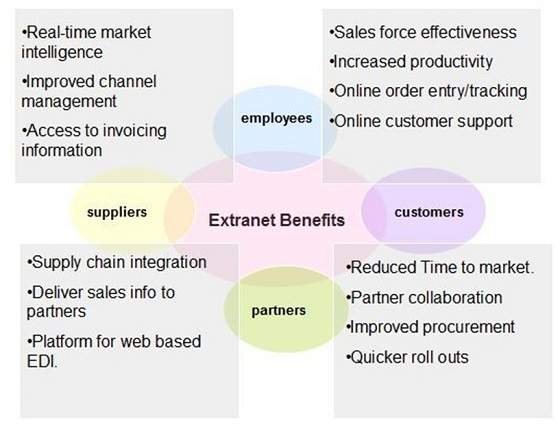
An extranet is a controlled private network that allows access to partners, vendors and suppliers or an authorized set of customers normally to a subset of the information accessible from an organization’s intranet. An extranet is similar to a DMZ in that it provides access to needed services for authorized parties, without granting access to an organization’s entire network. An extranet is a private network organization.

Historically the term was occasionally also used in the sense of two organizations sharing their internal networks over a VPN.

During the late 1990s and early 2000s, several industries started to use the term ‘extranet’ to describe centralized repositories of shared data (and supporting applications) made accessible via the web only to authorized members of particular work groups – for example, geographically dispersed, multi-company project teams. Some applications are offered on a software as a service (SaaS) basis.

Advantage of Extranet

  • Exchange large volumes of data using Electronic Data Interchange (EDI)
  • Share product catalogs exclusively with trade partners
  • Collaborate with other companies on joint development efforts
  • Jointly develop and use training programs with other companies
  • Provide or access services provided by one company to a group of other companies, such as an online banking application managed by one company on behalf of affiliated banks.

Extranet

Disadvantage of Extranet

  • Extranets can be expensive to implement and maintain within an organization (e.g., hardware, software, employee training costs), if hosted internally rather than by an application service provider.
  • Security of extranets can be a concern when hosting valuable or proprietary information.

Issues in Extranet

Apart for advantages there are also some issues associated with extranet. These issues are discussed below:

  1. Hosting

Where the extranet pages will be held i.e. who will host the extranet pages. In this context there are two choices:

  1. Host it on your own server.

Host it with an Internet Service Provider (ISP) in the same way as web pages.

But hosting extranet pages on your own server requires high bandwidth internet connection which is very costly.

  1. Security

Additional firewall security is required if you host extranet pages on your own server which result in a complex security mechanism and increase work load.

  1. Accessing Issues

Information cannot be accessed without internet connection. However, information can be accessed in Intranet without internet connection.

  1. Decreased Interaction

It decreases the face to face interaction in the business which results in lack of communication among customers, business partners and suppliers.

Networking Basics

A computer network is a group of two or more interconnected computer systems. You can establish a network connection using either cable or wireless media.

It is the interconnection of multiple devices, generally termed as Hosts connected using multiple paths for the purpose of sending/receiving data or media.

There are also multiple devices or mediums which helps in the communication between two different devices which are known as Network devices. Ex: Router, Switch, Hub, Bridge.

Every network involves hardware and software that connects computers and tools.

Components of Computer Network

Here are essential computer network components:

  1. Switches

Switches work as a controller which connects computers, printers, and other hardware devices to a network in a campus or a building.

It allows devices on your network to communicate with each other, as well as with other networks. It helps you to share resources and reduce the costing of any organization.

  1. Routers

Routers help you to connect with multiple networks. It enables you to share a single internet connection with multiple devices and saves money. This networking component acts as a dispatcher, which allows you to analyze data sent across a network. It automatically selects the best route for data to travel and send it on its way.

  1. Servers

Servers are computers that hold shared programs, files, and the network operating system. Servers allow access to network resources to all the users of the network.

  1. Clients

Clients are computer devices which access and uses the network as well as shares network resources. They are also users of the network, as they can send and receive requests from the server.

  1. Transmission Media

Transmission media is a carrier used to interconnect computers in a network, such as coaxial cable, twisted-pair wire, and optical fiber cable. It is also known as links, channels, or lines.

  1. Access points

Access points allow devices to connect to the wireless network without cables. A wireless network allows you to bring new devices and provides flexible support to mobile users.

  1. Shared Data

Shared data are data which is shared between the clients such as data files, printer access programs, and email.

  1. Network Interface Card

Network Interface card sends, receives data, and controls data flow between the computer and the network.

  1. Local Operating System

A local OS which helps personal computers to access files, print to a local printer and uses one or more disk and CD drives which are located on the computer.

  1. Network Operating System

The network operating system is a program which runs on computers and servers. It allows the computers to communicate via network.

  1. Protocol

A protocol is the set of defined rules that allows two entities to communicate across the network. Some standard protocols used for this purpose are IP, TCP, UDP, FTP, etc.

  1. Hub

Hub is a device that splits network connection into multiple computers. It acts a distribution center so whenever a computer requests any information from a computer or from the network it sends the request to the hub through a cable. The hub will receive the request and transmit it to the entire network.

  1. LAN Cable

Local Area Network(LAN) cable is also called as Ethernet or data cable. It is used for connecting a device to the internet.

  1. OSI

OSI stands for Open Systems Interconnection. It is a reference model which allows you to specify standards for communications.

Unique Identifiers of Network

Below given are some unique network identifiers:

  1. Hostname

Every device of the network is associated with a unique device, which is called hostname.

  1. IP Address

IP (Internet Protocol) address is as a unique identifier for each device on the Internet. Length of the IP address is 32-bits. IPv6 address is 64 bits.

  1. DNS Server

DNS stands for Domain Name System. It is a server which translates URL or web addresses into their corresponding IP addresses.

  1. MAC Address

MAC (Media Access Control Address) is known as a physical address is a unique identifier of each host and is associated with the NIC (Network Interface Card). General length of MAC address is: 12-digit/ 6 bytes/ 48 bits

  1. Port

Port is a logical channel which allows network users to send or receive data to an application. Every host can have multiple applications running. Each of these applications are identified using the port number on which they are running.

Advantages of a Computer Network

Here are the fundamental benefits/pros of using Computer Networking:

  • Helps you to connect with multiple computers together to send and receive information when accessing the network.
  • Helps you to share printers, scanners, and email.
  • Helps you to share information at very fast speed
  • Electronic communication is more efficient and less expensive than without the network.

Disadvantages of using Computer Networks

Here are drawbacks/ cons of using computer networks:

  • Investment for hardware and software can be costly for initial set-up
  • If you don’t take proper security precautions like file encryption, firewalls then your data will be at risk.
  • Some components of the network design may not last for many years, and it will become useless or malfunction and need to be replaced.
  • Requires time for constant administration
  • Frequent server failure and issues of regular cable faults

Summary:

  • A computer network is a group of two or more interconnected computer systems
  • Computer networks help you to connect with multiple computers together to send and receive information
  • Switches work as a controller which connects computers, printers, and other hardware devices
  • Routers help you to connect with multiple networks. It enables you to share a single internet connection and saves money
  • Servers are computers that hold shared programs, files, and the network operating system
  • Clients are computer device which accesses and uses the network and shares network resources
  • Hub is a device that split a network connection into multiple computers.
  • Access points allow devices to connect to the wireless network without cables
  • Network Interface card sends, receives data and controls data flow between the computer and the network
  • A protocol is the set of defined rules which that allows two entities to communicate across the network
  • Hostname, IP Address, DNS Server, and host are important unique indetenfiters of computer networks.
  • ARP stands for Address Resolution Protocol
  • RAR Reverse Address Resolution Protocol gives an IP address of the device with given a physical address as input.
  • Computer network helps you to share expensive software’s and database among network participants
  • The biggest drawback of installing computer network is that its initial investment for hardware and software can be costly for initial set-up

Different Types of Network

Used for everything from accessing the internet or printing a document to downloading an attachment from an email, networks are the backbone of business today. They can refer to a small handful of devices within a single room to millions of devices spread across the entire globe, and can be defined based on purpose and/or size.

Types of Networks in Use Today

  1. Personal Area Network (PAN)

The smallest and most basic type of network, a PAN is made up of a wireless modem, a computer or two, phones, printers, tablets, etc., and revolves around one person in one building. These types of networks are typically found in small offices or residences, and are managed by one person or organization from a single device.

There are two types of Personal Area Network:-

  • Wireless Personal Area Network: Wireless Personal Area Network is developed by simply using wireless technologies such as WiFi, Bluetooth. It is a low range network.
  • Wired Personal Area Network: Wired Personal Area Network is created by using the USB.
  1. Local Area Network (LAN)

We’re confident that you’ve heard of these types of networks before LANs are the most frequently discussed networks, one of the most common, one of the most original and one of the simplest types of networks. LANs connect groups of computers and low-voltage devices together across short distances (within a building or between a group of two or three buildings in close proximity to each other) to share information and resources. Enterprises typically manage and maintain LANs.

Using routers, LANs can connect to wide area networks (WANs, explained below) to rapidly and safely transfer data.

  1. Wireless Local Area Network (WLAN)

Functioning like a LAN, WLANs make use of wireless network technology, such as Wi-Fi. Typically seen in the same types of applications as LANs, these types of networks don’t require that devices rely on physical cables to connect to the network.

  1. Campus Area Network (CAN)

Larger than LANs, but smaller than metropolitan area networks (MANs, explained below), these types of networks are typically seen in universities, large K-12 school districts or small businesses. They can be spread across several buildings that are fairly close to each other so users can share resources.

  1. Metropolitan Area Network (MAN)

These types of networks are larger than LANs but smaller than WANs and incorporate elements from both types of networks. MANs span an entire geographic area (typically a town or city, but sometimes a campus). Ownership and maintenance is handled by either a single person or company (a local council, a large company, etc.).

Uses of Metropolitan Area Network

  • MAN is used in communication between the banks in a city.
  • It can be used in an Airline Reservation.
  • It can be used in a college within a city.
  • It can also be used for communication in the military.
  1. Wide Area Network (WAN)

Slightly more complex than a LAN, a WAN connects computers together across longer physical distances. This allows computers and low-voltage devices to be remotely connected to each other over one large network to communicate even when they’re miles apart.

The Internet is the most basic example of a WAN, connecting all computers together around the world. Because of a WAN’s vast reach, it is typically owned and maintained by multiple administrators or the public.

Advantages of Wide Area Network

Following are the advantages of the Wide Area Network:

  • Geographical area: A Wide Area Network provides a large geographical area. Suppose if the branch of our office is in a different city then we can connect with them through WAN. The internet provides a leased line through which we can connect with another branch.
  • Centralized data: In case of WAN network, data is centralized. Therefore, we do not need to buy the emails, files or back up servers.
  • Get updated files: Software companies work on the live server. Therefore, the programmers get the updated files within seconds.
  • Exchange messages: In a WAN network, messages are transmitted fast. The web application like Facebook, Whatsapp, Skype allows you to communicate with friends.
  • Sharing of software and resources: In WAN network, we can share the software and other resources like a hard drive, RAM.
  • Global business: We can do the business over the internet globally.
  • High bandwidth: If we use the leased lines for our company then this gives the high bandwidth. The high bandwidth increases the data transfer rate which in turn increases the productivity of our company.

Disadvantages of Wide Area Network

The following are the disadvantages of the Wide Area Network:

  • Security issue: A WAN network has more security issues as compared to LAN and MAN network as all the technologies are combined together that creates the security problem.
  • Needs Firewall & antivirus software: The data is transferred on the internet which can be changed or hacked by the hackers, so the firewall needs to be used. Some people can inject the virus in our system so antivirus is needed to protect from such a virus.
  • High Setup cost: An installation cost of the WAN network is high as it involves the purchasing of routers, switches.
  • Troubleshooting problems: It covers a large area so fixing the problem is difficult.
  1. Storage-Area Network (SAN)

As a dedicated high-speed network that connects shared pools of storage devices to several servers, these types of networks don’t rely on a LAN or WAN. Instead, they move storage resources away from the network and place them into their own high-performance network. SANs can be accessed in the same fashion as a drive attached to a server. Types of storage-area networks include converged, virtual and unified SANs.

  1. System-Area Network (also known as SAN)

This term is fairly new within the past two decades. It is used to explain a relatively local network that is designed to provide high-speed connection in server-to-server applications (cluster environments), storage area networks (called “SANs” as well) and processor-to-processor applications. The computers connected on a SAN operate as a single system at very high speeds.

  1. Passive Optical Local Area Network (POLAN)

As an alternative to traditional switch-based Ethernet LANs, POLAN technology can be integrated into structured cabling to overcome concerns about supporting traditional Ethernet protocols and network applications such as PoE (Power over Ethernet). A point-to-multipoint LAN architecture, POLAN uses optical splitters to split an optical signal from one strand of singlemode optical fiber into multiple signals to serve users and devices.

  1. Enterprise Private Network (EPN)

These types of networks are built and owned by businesses that want to securely connect its various locations to share computer resources.

  1. Virtual Private Network (VPN)

By extending a private network across the Internet, a VPN lets its users send and receive data as if their devices were connected to the private network even if they’re not. Through a virtual point-to-point connection, users can access a private network remotely.

Hubs

A hub, also called a network hub, is a common connection point for devices in a network. Hubs are devices commonly used to connect segments of a LAN. The hub contains multiple ports. When a packet arrives at one port, it is copied to the other ports so that all segments of the LAN can see all packets.

A hub is a network hub used for connection of devices in a network. It connects several devices in a LAN. All the devices in the network connection is connected through hub that acts as a central connection for all the devices. There are many ports in the hub and if a packet arrives only at one port, it is copied so that all the ports can see the packets. This helps if there is any trouble in one port of the hub. The three types of hub are active, passive and intelligent. Active hubs amplify the incoming electric signal whereas passive hubs do not amplify the electric signal. Intelligent hubs are kind of active hubs.

When referring to a network, a hub is the most basic networking device that connects multiple computers or other network devices together. Unlike a network switch or router, a network hub has no routing tables or intelligence on where to send information and broadcasts all network data across each connection. Most hubs can detect basic network errors such as collisions, but having all information broadcast to multiple ports can be a security risk and cause bottlenecks. In the past, network hubs were popular because they were cheaper than a switch or router. Today, switches do not cost much more than a hub and are a much better solution for any network.

What Hubs Do?

Hubs and switches serve as a central connection for all of your network equipment and handles a data type known as frames. Frames carry your data. When a frame is received, it is amplified and then transmitted on to the port of the destination PC.

In a hub, a frame is passed along or “broadcast” to every one of its ports. It doesn’t matter that the frame is only destined for one port. The hub has no way of distinguishing which port a frame should be sent to. Passing it along to every port ensures that it will reach its intended destination. This places a lot of traffic on the network and can lead to poor network response times.

Compared to a standard switch, the hub is slower as it can send or receive information just not at the same time, but typically costs more than a hub.

Types of Hub

There are three types which is deployed according to its usage. They are passive, active, and intelligent. In recent days, the modification was done to hubs that provide high performance.

  1. Passive Hub

It has quiescent creatures as the name portraits and it does not should any impact on performance but it helps in identifying the bugs and detecting the faulty hardware. They are a simple that receives the packet on a port and is then broadcast to all the port.

It has a 10base-2 port and RJ-45 connectors which is connected to each local area network device. This connecter is applied as a standard one in your network. AUI ports are placed in advanced passive hubs which are connected as the transceiver as per the network design.

  1. Active Hub

Active hubs have some additional features apart from passive hubs. It monitors the data which is sent out to the connected devices. It has a unique role in this network communication by using Store technology where it checks the data before sending out and prioritizes which packet to send first.

It has the option to fix the damaged packets and hold the direction and distribution of the rest of the packets. If a week signal is received in port but it’s still readable then the active hub amplifies it to a stronger signal before its retransmitted to other ports.

If any connecting device is not functioning in the network it can boost the signal which is viewed by other devices with passive hubs. Hence it helps in the continuation of service in the local area network.

But few of them will account for the malfunction of any device and offer related diagnostic capabilities in the local area network. They will be able to resync the packets and transmit them again. Some cables go through electromagnetic troubles and stop the packet from entering into the designated port or rarely it does not reach the port. At those times, they can make up for the packet or data loss. They are accessible to retime the port for slower delivery and error-prone connections

  1. Intelligent Hub

These give many advantages than passive and active hubs. The management who wants to expand their business in networking can assign users to share a common pool efficiently and work more quickly using intelligent hubs. The technique behind them is explored recently and now its great demand in the market.

It is proved that it delivers unparallel performance for your local area network. If any problem is detected with any physical device it is easily detected, diagnosed and solution to the problem using management data which can be rectified by the hub.

This is a standard improvement over active hubs. Detecting the centralized management tool which helps to explore the network which runs out of the device to find the low functioning devices.

Another feature is flexibility which has high transmission rates to numerous devices. They have their standard terms with transmission rate as 10, 16, in the speed of 100Mbps to desktop.

Benefits of Hubs

  • The technical information has a physical layer function which is connecting multiple hubs and has numerous benefits. They detect crucial problems and immoderate collision and interrupt jabbering occurred between ports or devices. If any fault occurs, it disconnects the signal flow and prevents the damaged device from the rest of the device.
  • If there is any misbehavior or hissing in a cable can also be detected and prevented the device from great loss. It has an inbuilt twisted based ethernet which helps to detect any malfunction. To pass the data through each segment through repeater should be the same in all partitions because the repeater cannot connect the data with different segments.
  • Many classes have varied speed range hubs. Class 1 has a signal delay of 140-bit time by setting a transaction record in a range of 100BASE-TX, and 100BASE-T4 whereas class 2 has the signal delay of 92-bit time by accessing a single collision domain.
  • Dual speed is an internal port switch that works on 10M/bits and 100M/bits segments. When any device is connected along with these segments the port becomes active and the data signal is transmitted at a higher rate, but this turns as a failure model because it fails to design the switch between traffic flow.

A switch is part of Hub which tracks all details of the MAC address of the connected devices. It knows about the system or devices and their connection port, so if any packet is received, the switch chooses and sends it to that port. The network hub is also called an active, multiport repeater, ethernet, and repeater. The hubs and switches with multiple inputs and output ports that form a network and all the connected devices act a single network segment and work efficiently preventing data loss.

Bridges

A bridge is a type of computer network device that provides interconnection with other bridge networks that use the same protocol.

Bridge devices work at the data link layer of the Open System Interconnect (OSI) model, connecting two different networks together and providing communication between them. Bridges are similar to repeaters and hubs in that they broadcast data to every node. However, bridges maintain the media access control (MAC) address table as soon as they discover new segments, so subsequent transmissions are sent to only to the desired recipient.

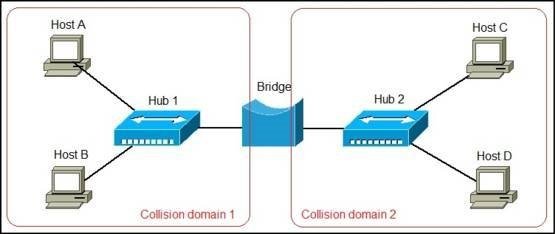
A network bridge is a device that divides a network into segments. Each segment represent a separate collision domain, so the number of collisions on the network is reduced. Each collision domain has its own separate bandwidth, so a bridge also improves the network performance.

A bridge is also called Layer 2 Switch. A network bridge is a device that is primarily used in Local Area Networks (LANs). It is because these networks can potentially flood and clog a large network.

It is one of their abilities that they broadcast data to all the nodes if they do not know the destination node’s address. The bridge uses a database.

The purpose of this database is to ascertain where to pass the data frame, where to transmit the data frame, or where to discard the data frame. Network bridges are also called Ethernet bridges. They connect two segments of a single network together. The main purpose of bridges is to divide a network into different manageable sections.

A bridge works at the Data link layer (Layer 2) of the OSI model. It inspects incoming traffic and decide whether to forward it or filter it. Each incoming Ethernet frame is inspected for destination MAC address. If the bridge determines that the destination host is on another segment of the network, it forwards the frame to that segment.

Consider the following example network:

In the picture above we have a network of four computers. The network is divided into segments by a bridge. Each segment is a separate collision domain with its own bandwidth. Let’s say that Host A wants to communicate with Host C. Host A will send the frame with the Host C’s destination MAC address to the bridge. The bridge will inspect the frame and forward it to the segment of the network Host C is on.

Network bridges offer substantial improvements over network hubs, but they are not widely used anymore in modern LANs. Switches are commonly used instead.

Types of bridges in networking

Following are some Types of bridges in networking

  1. Transparent Bridge

This is a bridge in which the stations are completely unaware of the experience of the bridge. For example, May or May not a bridge is added or deleted from the network, the station’s reconfiguration is unnecessary. This bridge makes use of two different processes like bridge forwarding and bridge learning.

  1. Source routing bridge

In this bridge, the routing operation is performed by the source station. The frame specifies which route to follow. The hot discovers the frame by sending a special frame which is called a discovery frame. This spreads through the entire network by using all possible paths to the destination.

Advantages of bridges

  • Bridges can extend a network.
  • Bridges can act as a repeater.
  • They can reduce network traffic on a segment.
  • They can subdivide the network communication.
  • They increase the available bandwidth to individual nodes.
  • Bridges reduce collisions as well.
  • Bridges can create separate collision domains.
  • They can connect different architectures.

Disadvantages of bridges

  • They are slower than repeaters.
  • Filtering makes them slower.
  • They do not filter broadcasts.
  • Bridges are more expensive.
  • They must use routable protocols.
  • They need to understand the protocols which they forward.
  • They require a lot of amount for initial configuration.
  • These are complex devices.
  • These devices are unable to read a specific IP address.
  • Its speed is slow.
  • Bridges cannot use a firewall as a device.
  • They send messages to all the nodes.
  • Sending a message to all nodes reduces speed.
  • Sending messages to all nodes causes a waste of time.
error: Content is protected !!