Cache memory

Cache Memory is a special very high-speed memory. It is used to speed up and synchronizing with high-speed CPU. Cache memory is costlier than main memory or disk memory but economical than CPU registers. Cache memory is an extremely fast memory type that acts as a buffer between RAM and the CPU. It holds frequently requested data and instructions so that they are immediately available to the CPU when needed.

Cache memory is used to reduce the average time to access data from the Main memory. The cache is a smaller and faster memory which stores copies of the data from frequently used main memory locations. There are various different independent caches in a CPU, which store instructions and data.

Levels of memory:

  • Level 1 or Register
    It is a type of memory in which data is stored and accepted that are immediately stored in CPU. Most commonly used register is accumulator, Program counter, address register etc.
  • Level 2 or Cache memory
    It is the fastest memory which has faster access time where data is temporarily stored for faster access.
  • Level 3 or Main Memory
    It is memory on which computer works currently. It is small in size and once power is off data no longer stays in this memory.
  • Level 4 or Secondary Memory
    It is external memory which is not as fast as main memory but data stays permanently in this memory.

Cache Performance:

When the processor needs to read or write a location in main memory, it first checks for a corresponding entry in the cache.

  • If the processor finds that the memory location is in the cache, a cache hit has occurred and data is read from cache
  • If the processor does not find the memory location in the cache, a cache miss has occurred. For a cache miss, the cache allocates a new entry and copies in data from main memory, then the request is fulfilled from the contents of the cache.

The performance of cache memory is frequently measured in terms of a quantity called Hit ratio.

Hit ratio = hit / (hit + miss) =  no. of hits/total accesses

We can improve Cache performance using higher cache block size, higher associativity, reduce miss rate, reduce miss penalty, and reduce Reduce the time to hit in the cache.

Cache Mapping:

There are three different types of mapping used for the purpose of cache memory which are as follows: Direct mapping, Associative mapping, and Set-Associative mapping. These are explained below.

  1. Direct Mapping
    The simplest technique, known as direct mapping, maps each block of main memory into only one possible cache line. or
    In Direct mapping, assigne each memory block to a specific line in the cache. If a line is previously taken up by a memory block when a new block needs to be loaded, the old block is trashed. An address space is split into two parts index field and a tag field. The cache is used to store the tag field whereas the rest is stored in the main memory. Direct mapping`s performance is directly proportional to the Hit ratio.

i = j modulo m

where

i=cache line number

j= main memory block number

m=number of lines in the cache

For purposes of cache access, each main memory address can be viewed as consisting of three fields. The least significant w bits identify a unique word or byte within a block of main memory. In most contemporary machines, the address is at the byte level. The remaining s bits specify one of the 2s blocks of main memory. The cache logic interprets these s bits as a tag of s-r bits (most significant portion) and a line field of r bits. This latter field identifies one of the m=2r lines of the cache.

  1. Associative Mapping:
    In this type of mapping, the associative memory is used to store content and addresses of the memory word. Any block can go into any line of the cache. This means that the word id bits are used to identify which word in the block is needed, but the tag becomes all of the remaining bits. This enables the placement of any word at any place in the cache memory. It is considered to be the fastest and the most flexible mapping form.
  2. Set-associative Mapping:
    This form of mapping is an enhanced form of direct mapping where the drawbacks of direct mapping are removed. Set associative addresses the problem of possible thrashing in the direct mapping method. It does this by saying that instead of having exactly one line that a block can map to in the cache, we will group a few lines together creating a set. Then a block in memory can map to any one of the lines of a specific set..Set-associative mapping allows that each word that is present in the cache can have two or more words in the main memory for the same index address. Set associative cache mapping combines the best of direct and associative cache mapping techniques.

Application of Cache Memory:

  1. Usually, the cache memory can store a reasonable number of blocks at any given time, but this number is small compared to the total number of blocks in the main memory.
  2. The correspondence between the main memory blocks and those in the cache is specified by a mapping function.

Types of Cache:

  • Primary Cache:
    A primary cache is always located on the processor chip. This cache is small and its access time is comparable to that of processor registers.
  • Secondary Cache:
    Secondary cache is placed between the primary cache and the rest of the memory. It is referred to as the level 2 (L2) cache. Often, the Level 2 cache is also housed on the processor chip.

Locality of reference:
Since size of cache memory is less as compared to main memory. So to check which part of main memory should be given priority and loaded in cache is decided based on locality of reference.

Types of Locality of reference

  1. Spatial Locality of reference
    This says that there is a chance that element will be present in the close proximity to the reference point and next time if again searched then more close proximity to the point of reference.
  2. Temporal Locality of reference
    In this Least recently used algorithm will be used. Whenever there is page fault occurs within a word will not only load word in main memory but complete page fault will be loaded because spatial locality of reference rule says that if you are referring any word next word will be referred in its register that’s why we load complete page table so the complete block will be loaded.
File Management system

A file management system is a type of software that manages data files in a computer system. It has limited capabilities and is designed to manage individual or group files, such as special office documents and records. It may display report details, like owner, creation date, state of completion and similar features useful in an office environment.

A file management system is also known as a file manager.

A file management system should not be confused with a file system, which manages all types of data and files in an operating system (OS), or a database management system (DBMS), which has relational database capabilities and includes a programming language for further data manipulation.

A file management system’s tracking component is key to the creation and management of this system, where documents containing various stages of processing are shared and interchanged on an ongoing basis.

Six Best File Management System

  1. PDF element for Business

PDFelement for Business is one of its kinds in features, manageability, and ease of use. It can easily be considered as the best file management system software. There are several features which will make your business document processing and management a whole lot easier. First comes the security. Not all documents in an organization are accessible to every employee. Some documents need restricted access and with the help of password protect feature, this task is managed very conveniently.

Top level management is always in negotiations to make business better. With the help of electronic signature or digital signature feature, any type of contract or agreement which needs multiple signatures is preceded easily. Just add your signature, send it to others and wait for their signature. All done virtually. These signatures have a legal value so you don’t get in any kind of unwanted trouble.

  1. Agiloft

Agiloft is great in terms of managing large enterprise documents. Graphical Workflow feature lets you create a step by step model on how a certain document should be processed on each step. More information and less hassle lead to efficient task execution. With Audit Trail feature, you can easily find what changes were made at a certain time and who was responsible. Round Robin Assignment feature helps distribute work fairly.

With so many options to customize this platform, there can be a number of complications sometimes and can lead to slower than normal work progress.

  1. Alfresco One

Alfresco One is available in both cloud and self-hosted option. This file management system’s compatibility with different devices and operating systems make it easy for users to view, manage and change the documents from anywhere. Robust and secure content repository ensures that no intruder pry on your sensitive data. Alfresco is available in both cloud and self-hosted options.

  1. Cabinet

This file management system is also available in self-hosted and cloud options. It is not a simple file management system as you can view and manage your documents from anywhere. It is compatible with several accounting software and email clients. Document sharing is made secure with industrial standard encryption. Electronic Signatures can also be inserted into documents. Document storage, search, and retrieval are easy and efficient.

The only problem is the Cloud requirements when a large enterprise needs higher upload and download speeds.

  1. Contentverse

This file management system is designed in a very versatile way so that it can fit the requirements of any organization small or large. File storage and finding or retrieving is really fast. With the help of workflow management, you can set milestones and goals for your team.

With the help of cross-platform compatibility, you can work from anywhere you want. All your business content is safe because of state of the art digital security provided by Contentverse. Audit trails can help you find what was changed when and by whom.

  1. Digital Drawer

This file management system is only available in on-premises options. Importing a document is an easy process as you can scan or upload documents. Every document is secure and nobody can access your data without authorization. Documents organization is efficient as you can place files in a window like a tree folder structure. Document management is really efficient and you can search for and access any file within seconds.

With the help of cross-platform compatibility, you can work from anywhere you want. All your business content is safe because of state of the art digital security provided by Contentverse. Audit trails can help you find what was changed when and by whom.

Magnetic tape, Magnetic Disk, Optical disk etc.

The most common type of storage device is magnetic storage device. In magnetic storage devices, data is stored on a magnetized medium. Magnetic storage use different patterns of magnetization to in a magnetizable medium to store data.

There are primarily 3 types of Magnetic Storage Devices as follows,

  1. Disk Drives:

Magnetic storage devices primarily made of disks are Disk Drives. Hard Disk Drive is a Disk Drive. HDD contains one or more disks that runs in a very high speed and coated with magnetizable medium. Each disk in a HDD comes with a READ/WRITE head that reads and write data from and onto the disk.

  1. Diskette Drives:

Diskette drives or floppy disks are removable disk drives. The discs in Hard Disk Drives are not meant to be removed, but in case of Floppy disks, the disks are removable from the drive which is called Floppy Disk Drive or FDD. Floppy disks comes with very little storage capacity and meant to be used as portable storage to transfer data from one machine to another. The FDD reads and writes data from and to the floppy disk. The floppy disk itself is covered with plastic and fabric to remove dust. Floppy disk does not contain any read and write head, the FDD contains the head.

  1. Magnetic Tape:

Magnetic tapes are those reels of tapes which are coated with magnetizable elements to hold and server written on it in one of the many magnetizing data storage pattern. Tape drives come with very high capacity of storage and still in use though personal computers, server etc. uses hard disk drives or other modern type of storage mechanism, tape drives are still in use for archiving hundreds of terabytes of data.

Operating Storage Types

Optical storage refers to recording data using light. Typically, that’s done using a drive that can contain a removable disk and a system based on lasers that can read or write to the disk. If you’ve ever used a DVD player to watch a movie, put a CD in a player to listen to music or used similar disks in your desktop or laptop computer, you’ve used optical storage.

Compared to other types of storage such as magnetic hard drives, the disks used in optical storage can be quite inexpensive and lightweight, making them easy to ship and transport. They also have the advantage of being removable, unlike disks in typical hard drive, and they’re able to store much more information than previous types of removable media such as floppy disks.

Among the most familiar types of optical storage devices are the CD, DVD and Blu-ray disc drives commonly found in computers. Initially, many of these drives were read-only, meaning they could only access data on already created disks and couldn’t write new content to existing or blank disks. Still, the read-only devices called CD-ROM drives revolutionized home and business computing in the 1990s, making it possible to distribute multimedia material like graphically rich games, encyclopedias and video material that anyone could access on a computer. Now, most drives can both read and write the types of optical disks they are compatible with.

Disks are available that can be written once, usually marked with the letter “R” as in “DVD-R,” or that can be written multiple times, usually marked with the letters “RW.” Similar drives are also found in most modern home video game consoles in order to read game software. Drives in computers and gaming systems can typically play movies and music on optical disks as well. Make sure you buy disks that are compatible with your drives and players.

Standalone players for audio CDs and TV-compatible players for Blu-ray discs are also widely available. Drives and players for older formats like HD-DVD and LaserDisc are still available as well, although they can be more difficult to find.

Flash Memory

Flash memory (Known as Flash Storage) is a type of non-volatile storage memory that can be written or programmed in units called “Sector” or a “Block.” Flash Memory is EEPROM (Electronically Erasable Programmable Read-Only Memory) means that it can retain its contents when the power supply removed, but whose contents can be quickly erased and rewritten at the byte level by applying a short pulse of higher voltage. This is called flash erasure, hence the name. Flash memory is currently both too expensive and too slow to serve as main memory.

Flash memory (sometimes called “Flash RAM”) is a distinct EEPROM that can read block-wise. Typically the sizes of the block can be from hundreds to thousands of bits. Flash Storage block can be divided into at least two logical sub-blocks.

Flash memory mostly used in consumer storage devices, and for networking technology. It commonly found in mobile phones, USB flash drives, tablet computers, and embedded controllers.

Flash memory is often used to hold control code such as the basic input/output system (BIOS) in a personal computer. When BIOS needs to be changed (rewritten), the flash memory can be written to in block (rather than byte) sizes, making it easy to update. On the other hand, flash memory is not usedas random access memory (RAM) because RAM needs to be addressable at the byte (not the block) level.

Flash memories are based on Floating-Gate Transistors. Floating gate transistors are used in memory to store a bit of information. Flash memories are used in the device to store a large number of songs, images, files, software, andvideo for an extended period,etc.

History Flash Memory

In 1980’s Flash memory as invented by Fujio Masuoka, while working in Toshiba. In 1988, Intel introduced NOR flash memory chip having random access to memory location. These NOR chips were a well-suited replacement for older ROM chips. In 1989, with more improvement, NAND flash memory was introduced by Toshiba. NAND flash memory is similar to a Hard disk with more data storage capacity. After that, there has been a rapid growth in flash memory over the years passes.

Flash memory is an electronic chip that retains its stored data without any power. Flash memory is different from RAM.RAM is volatile memory, needs electricity and power to maintain its content. However, flash memory does notrequire the power for holding data. Flash memory was used in many devices like in form SD card, Pen-drive (moveable storage), camera card and video card, and so forth. Flash memory gives faster access to data content ascompared to hard disk. In hard-disk, disk rotation takes time to move on the particularcylinder, track orsector.However,in a flash, no rotating time dischas created abarrier for fast access.

Types of Flash Memory

Flash memory is available in two kinds NAND Flash and NOR Flash Memory. NAND and NOR flash memory both have different architecture and used for specific purpose.

  • NAND Flash Memory

In today is an environment where all devices require high data density, faster speed access and cost-effective chip for data storage. NAND memory has needed less chip area hence more data density. NAND Memory used the concept of the block to access and erases the data. Each block contains thedifferent size of pages various from bytes. MMU (Memory Management Unit) helps NAND to the first page the content or copied into RAM and then executed.

  • NOR Flash Memory

In the circuit of flash memory, memory cells are connected in parallel. It provides random or sequentially access memory. Data Reading process for NOR and RAM are similar. We can execute the code directly from NOR without copying into RAM. NOR memory ideal for runs small code instructions program. It referred to Code-storage applications. It used for low-density applications.

NOR flash provides support to bad block management. Bad block in memory is handled by controller devices to improve functionality.

We can use the combination of both NOR and NAND memory. NOR (software ROM) used for instruction execution,and NAND used for non-volatile data storage.

Limitation of Flash Memory

Although Flash memory gives many advantages, yet it has some flaw.

1) We can quickly read or programmed a byte at a time, but we cannot erase a byte or word. It can delete data in blocks at a time.

2) Bit flipping: Bit Flipping problem is more occur in NAND memory as compare to NOR. In Bit Flipping, a bit get reversed and create errors. For checking and correcting the bit error (EDC/ECC) detection and error correction code are implemented.

3) Bad block: Bad block are the blocks which can’t be used for storage. If scanning system gets fails to check and recognize badblock in memory. Then reliability of system gets reduced.

4) Usage of NOR and NAND memory: NOR is easy to use. Just connect it and use it. However, NAND not used like that. NAND has I/O interface and requires adriver for performing any operation. Read operation from NOR do notneedany driver.

SASD, DASD concept

The Sequential Access Storage Device (SASD) is a computer storage device whose content is accessed sequentially, as opposed to directly.

For example, a tape drive is a SASD,

while a disk drive is a Direct Access Storage Device(DASD).

A direct-access storage device (DASD) is another name for secondary storage devices that store data in discrete locations with a unique address, such as hard disk drives, optical drives and most magnetic storage devices.

It is a technology and term coined for storage devices that IBM developed for use with mainframe computers and some microcomputers. These developed into the modern hard disk and its variants like the optical disk, which today we would simply call secondary storage.

Direct-access storage devices allow the host computer to access data directly from wherever it is stored within the storage device because each data chunk is saved in a discrete and separate location from other chunks, complete with a unique address. This allows the computer to directly point to that location to get the data. Access methods include indexed, sequential and direct (incorrectly referred as random access).

Even if the exact location of the data is known, the speed of access is largely dependent on the capability of the storage device; for example, even if the exact data location within a tape drive is known, the only access method is sequential access because of the inherent design of the tape, which means it must go through all of the locations preceding the one that is needed. Additionally, the tape cannot run very fast. This is in contrast to a direct access disk, which can quickly spin the disk and move the read/write head to the correct track and sector in fractions of a second.

Modern DASDs are internal and external hard disk drives that connect directly to the host computer via an IDE, SATA, eSATA, USB or FireWire interface. Unlike network-attached storage (NAS), DASDs become inaccessible once the device they are connected to goes offline.

Secondary Memory, Characteristics, Types

Secondary Memory refers to non-volatile storage devices used to store data permanently or for long-term use. Unlike primary memory (RAM), which is fast but temporary, secondary memory is slower but provides much larger storage capacity. Common types of secondary memory include hard disk drives (HDD), solid-state drives (SSD), optical disks (CDs/DVDs), and flash drives. These devices are used to store operating systems, software, documents, and media files, ensuring that data persists even when the computer is powered off. Secondary memory is essential for data storage, backup, and retrieval in modern computing systems.

Characteristics of Secondary Memory:

  • Non-Volatility:

Secondary memory is non-volatile, which means it does not lose data when the power is turned off. This characteristic makes it ideal for long-term data storage. Unlike primary memory (RAM), which loses its contents once the computer is powered down, secondary memory devices like hard drives, solid-state drives (SSDs), and optical media store data persistently, ensuring that information is saved until it is manually deleted or overwritten.

  • Large Storage Capacity:

Secondary memory typically provides much larger storage capacity compared to primary memory. While RAM might range from a few gigabytes to a few terabytes in modern systems, secondary storage devices can offer capacities from hundreds of gigabytes to several terabytes or more. Devices such as hard disk drives (HDDs) and solid-state drives (SSDs) provide large-scale storage, making them essential for storing extensive data like operating systems, applications, and user files.

  • Slower Speed:

Secondary memory is significantly slower than primary memory. Accessing data from secondary storage requires more time compared to the high-speed access in RAM. However, the trade-off for the slower speed is the greater storage capacity and lower cost per unit of data storage. For example, while SSDs are faster than HDDs, both are still slower than RAM.

  • Cost-Effective:

Secondary memory is relatively more cost-effective in terms of storage capacity. It offers a lower cost per gigabyte of storage compared to primary memory. Devices such as HDDs or optical disks provide significant storage at a much lower price, making them ideal for long-term data storage.

  • Data Persistence:

The data in secondary memory remains intact even when the system is powered off. This persistence is crucial for storing files, programs, and system data that need to be preserved for future use, ensuring the system can retrieve them when needed without data loss.

  • Variety of Forms:

Secondary memory comes in various forms, including hard disk drives (HDDs), solid-state drives (SSDs), optical disks (such as CDs and DVDs), and flash drives. Each type has its unique features, like different speeds, capacities, and durability, catering to different storage needs and use cases. Some devices are portable (e.g., USB flash drives), while others are integrated into the system (e.g., HDDs, SSDs).

Types of Secondary Memory:

1. Hard Disk Drive (HDD):

Hard Disk Drive (HDD) is one of the most common types of secondary storage used in computers. It consists of one or more spinning disks (platters) coated with magnetic material. Data is written to and read from these platters using a read/write head. HDDs offer high storage capacity, typically ranging from hundreds of gigabytes to several terabytes, making them ideal for storing large amounts of data like operating systems, applications, and personal files. Although they are relatively slower compared to other storage devices, they are cost-effective, offering a good balance between performance and price.

2. Solid-State Drive (SSD)

Solid-State Drive (SSD) is a newer form of secondary storage that uses flash memory to store data. Unlike HDDs, SSDs have no moving parts, which makes them faster, more durable, and less prone to mechanical failure. SSDs offer faster read and write speeds compared to HDDs, which significantly improves overall system performance. They are widely used in modern computers, laptops, and gaming consoles. However, SSDs are generally more expensive per gigabyte than HDDs, making them less cost-effective for bulk storage.

3. Optical Discs (CD/DVD):

Optical Discs like Compact Discs (CDs) and Digital Versatile Discs (DVDs) are used for storing data in the form of light reflections. Data is encoded as pits and lands on the surface, and a laser is used to read the information. Optical discs are commonly used for media distribution (like music and movies), software installation, and data backup. They are portable and offer a reliable form of storage, though they are slower compared to other devices like HDDs and SSDs and have lower storage capacity (typically 700 MB for CDs and up to 4.7 GB for DVDs).

4. USB Flash Drives:

USB Flash Drive, also known as a thumb drive or pen drive, is a portable secondary storage device that uses flash memory to store data. They connect to a computer through a USB port and provide convenient and quick access to files. Flash drives are widely used for transferring files between computers, data backup, and as portable storage. Their storage capacity ranges from a few gigabytes to several terabytes, and they are lightweight, durable, and require no external power source. However, they can be slower than SSDs, particularly for large data transfers.

5. Magnetic Tape:

Magnetic Tape is one of the oldest forms of secondary storage. It stores data on long, narrow strips of magnetic material wound on a reel. Magnetic tape is primarily used for archiving and backing up large amounts of data. It offers high storage capacity at a low cost, but its data retrieval speeds are slower compared to other storage devices. Despite this limitation, magnetic tape is still widely used in industries requiring vast data storage, like in data centers, due to its affordability and long-term reliability.

Details of Basis System configuration

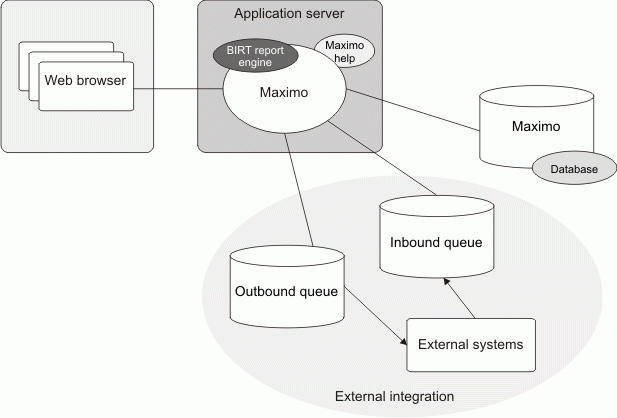
A basic system configuration consists of a single instance of the system running on an application server. That server connects to a single instance of the database that is available on a database server.

If the integration framework is also configured for deployment, then you must set up additional messaging queues. The additional queues enable the system to send data to the external systems and receive data from the external systems by using queues.

The basic configuration is appropriate for the following situations:

  • Development configuration
  • Quality assurance configuration (to test the development work)
  • Production system with a user load of 50 users or fewer users

A basic configuration might overload, depending on how much processing is performed within the application. If you need a configuration that handles more traffic than a basic configuration, then you can add Java™ virtual machines, or you can use the clustered configuration.

Even with fewer than 50 user loads, the basic system configuration can overload if there is significant processing. For example, scheduled jobs (such as cron tasks) and reports require significant memory and processing power. If the basic system configuration performs poorly, you can deploy the clustered configuration.

The default reporting engine is run from the application server that provides reporting capabilities.

The following diagram shows the main components in the basic configuration.

Figure 1. Basic system configuration

File Manipulation

An operating system (OS) is basically a collection of software that manages computer hardware resources and provides common services for computer programs. Operating system is a crucial component of the system software in a computer system.

These are some few common services provided by an operating system:

  • Program execution
  • I/O operations
  • File System manipulation
  • Communication
  • Error Detection
  • Resource Allocation
  • Protection

A file represents a collection of related information. Computers may store files on the disk (secondary storage), for long-term storage purpose. Some Examples: magnetic tape, magnetic disk and optical disk drives like CD, DVD. They have its own properties like speed, capacity, data transfer rate and data access methods.

A file system is generally organized into directories for easy navigation and usage. These directories can contain files and other directions. Some of the major activities of an operating system with respect to file management are:

  • Program requires to read a file or write a file.
  • Operating system gives the permission to the program for operation on file.
  • This permission varies from read-only, read-write, denied and so on.
  • The Operating System provides an interface to the user to create/delete files and directories.
  • The Operating System provides an interface to create the backup of file system.

Functions of Operating system

Important functions of an operating System:

  1. Security: The operating system uses password protection to protect user data and similar other techniques. it also prevents unauthorized access to programs and user data.
  2. Control over system performance: Monitors overall system health to help improve performance. records the response time between service requests and system response to have a complete view of the system health. This can help improve performance by providing important information needed to troubleshoot problems.
  3. Job accounting: Operating system Keeps track of time and resources used by various tasks and users, this information can be used to track resource usage for a particular user or group of user.
  4. Error detecting aids:
    Operating system constantly monitors the system to detect errors and avoid the malfunctioning of computer system.
  5. Coordination between other software and users: Operating systems also coordinate and assign interpreters, compilers, assemblers and other software to the various users of the computer systems.
  6. Memory Management: The operating system manages the Primary Memory or Main Memory. Main memory is made up of a large array of bytes or words where each byte or word is assigned a certain address. Main memory is a fast storage and it can be accessed directly by the CPU. For a program to be executed, it should be first loaded in the main memory. An Operating System performs the following activities for memory management: It keeps tracks of primary memory, i.e., which bytes of memory are used by which user program. The memory addresses that have already been allocated and the memory addresses of the memory that has not yet been used. In multi programming, the OS decides the order in which process are granted access to memory, and for how long. It Allocates the memory to a process when the process requests it and deallocates the memory when the process has terminated or is performing an I/O operation.
  7. Processor Management: In a multi programming environment, the OS decides the order in which processes have access to the processor, and how much processing time each process has. This function of OS is called process scheduling. An Operating System performs the following activities for processor management. Keeps tracks of the status of processes. The program which perform this task is known as traffic controller. Allocates the CPU that is processor to a process. De-allocates processor when a process is no more required.
  8. Device Management: An OS manages device communication via their respective drivers. It performs the following activities for device management. Keeps tracks of all devices connected to system. designates a program responsible for every device known as the Input/Output controller. Decides which process gets access to a certain device and for how long. Allocates devices in an effective and efficient way. Deallocates devices when they are no longer required.
  9. File Management: A file system is organized into directories for efficient or easy navigation and usage. These directories may contain other directories and other files. An Operating System carries out the following file management activities. It keeps track of where information is stored, user access settings and status of every file and more… These facilities are collectively known as the file system.

Moreover, Operating System also provides certain services to the computer system in one form or the other.
The Operating System provides certain services to the users which can be listed in the following manner:

  1. Program Execution: The Operating System is responsible for execution of all types of programs whether it be user programs or system programs. The Operating System utilises various resources available for the efficient running of all types of functionalities.
  2. Handling Input/Output Operations: The Operating System is responsible for handling all sort of inputs, i.e, from keyboard, mouse, desktop, etc. The Operating System does all interfacing in the most appropriate manner regrading all kind of Inputs and Outputs.
    For example, there is difference in nature of all types of peripheral devices such as mouse or keyboard, then Operating System is responsible for handling data between them.
  3. Manipulation of File System: The Operating System is responsible for making of decisions regarding the storage of all types of data or files, i.e, floppy disk/hard disk/pen drive, etc. The Operating System decides as how should the data should be manipulated and stored.
  4. Error Detection and Handling: The Operating System is responsible for detection of any types of error or bugs that can occur while any task. The well secured OS sometimes also acts as countermeasure for preventing any sort of breach to the Computer System from any external source and probably handling them.
  5. Resource Allocation: The Operating System ensures the proper use of all the resources available by deciding which resource to be used by whom for how much time. All the decisions are taken by the Operating System.
  6. Accounting: The Operating System tracks an account of all the functionalities taking place in the computer system at a time. All the details such as the types of errors occurred are recorded by the Operating System.
  7. Information and Resource Protection: The Operating System is responsible for using all the information and resources available on the machine in the most protected way. The Operating System must foil an attempt from any external resource to hamper any sort of data or information.

All these services are ensured by the Operating System for the convenience of the users to make the programming task easier. All different kinds of Operating System more or less provide the same services.

Introduction to GUI: Windows operating system

GUI is an interface that uses icons or other visual indicators to interact with electronic devices, rather than only text via a command line. For example, all versions of Microsoft Windows is a GUI, whereas MS-DOS is a command line. The GUI was first developed at Xerox PARC by Alan Kay, Douglas Engelbart, and a group of other researchers in 1981. Later, Apple introduced the Lisa computer with a GUI on January 19, 1983.

The actions in a GUI are usually performed through direct manipulation of the graphical elements. Beyond computers, GUIs are used in many handheld mobile devices such as MP3 players, portable media players, gaming devices, smartphones and smaller household, office and industrial controls. The term GUI tends not to be applied to other lower-display resolution types of interfaces, such as video games (where head-up display (HUD) is preferred), or not including flat screens, like volumetric displays because the term is restricted to the scope of two-dimensional display screens able to describe generic information, in the tradition of the computer science research at the Xerox Palo Alto Research Center.

How does a GUI work?

A GUI uses windows, icons, and menus to carry out commands, such as opening, deleting, and moving files. Although a GUI operating system is primarily navigated using a mouse, the keyboard can also be used to navigate using keyboard shortcuts or the arrow keys.

As an example, if you wanted to open a software program on a GUI operating system, you would move the mouse pointer to the program’s icon and double-click the icon.

Benefits of GUI

Unlike a command line operating system or CUI, like Unix or MS-DOS, GUI operating systems are much easier to learn and use because commands do not need to be memorized. Additionally, users do not need to know any programming languages. Because of their ease of use, GUI operating systems have become the dominant operating system used by today’s end-users.

What are examples of a GUI operating system?

  • Microsoft Windows
  • Apple System 7 and macOS
  • Chrome OS
  • Linux variants like Ubuntu using a GUI interface.

Are all operating systems GUI?

No. Early command line operating systems like MS-DOS and even some versions of Linux today have no GUI interface.

What are examples of a GUI interface?

  • GNOME
  • KDE
  • Any Microsoft program (e.g., Word, Excel, and Outlook).
  • Internet browser (e.g., Internet Explorer, Chrome, and Firefox).

How does the user interact with a GUI?

The user uses a pointing device such as the mouse to interact and use most aspects of the GUI. However, it is also possible to interact with a GUI using a keyboard or other input devices.

Windows operating system

Functions of an Operating System

An operating system performs various functions, and each function serves a specific purpose:

  1. Process Management: Manages the creation, deletion, and execution of processes. It provides mechanisms for synchronization and communication among processes to ensure efficient utilization of system resources.
  2. Memory Management: Allocates and de-allocates memory space to programs, handling the organization and retrieval of data from primary and secondary memory.
  3. File Management: Controls file-related activities, including storage, retrieval, naming, sharing, and protection of files. It ensures efficient access and manipulation of data stored in files.
  4. Device Management: Keeps track of all devices connected to the system, handling the allocation and de-allocation of devices for various processes.
  5. I/O System Management: Hides hardware peculiarities from the user, ensuring seamless input and output operations between the user and the hardware devices.
  6. Secondary-Storage Management: Manages different levels of storage, such as primary storage, secondary storage, and cache storage. It ensures that instructions and data are appropriately stored for efficient program execution.
  7. Security: Protects the computer system’s data and information from unauthorized access and malware threats, ensuring the integrity and confidentiality of sensitive data.
  8. Command Interpretation: Interprets commands given by users and directs system resources to process these commands effectively.
  9. Networking: Facilitates communication and coordination among distributed systems, enabling processors to communicate through a network without shared memory or hardware devices.
  10. Job Accounting: Keeps track of the time and resources utilized by different jobs and users for monitoring and billing purposes.
  11. Communication Management: Coordinates and assigns software resources (e.g., compilers, interpreters) among various users of the computer system.

Types of Operating system

  • Batch Operating System
  • Multitasking/Time Sharing OS
  • Multiprocessing OS
  • Real Time OS
  • Distributed OS
  • Network OS
  • Mobile OS

Batch Operating System

Some computer processes are very lengthy and time-consuming. To speed the same process, a job with a similar type of needs are batched together and run as a group.

The user of a batch operating system never directly interacts with the computer. In this type of OS, every user prepares his or her job on an offline device like a punch card and submit it to the computer operator.

Multi-Tasking/Time-sharing Operating systems

Time-sharing operating system enables people located at a different terminal(shell) to use a single computer system at the same time. The processor time (CPU) which is shared among multiple users is termed as time sharing.

Real time OS

A real time operating system time interval to process and respond to inputs is very small. Examples: Military Software Systems, Space Software Systems.

Distributed Operating System

Distributed systems use many processors located in different machines to provide very fast computation to its users.

Network Operating System

Network Operating System runs on a server. It provides the capability to serve to manage data, user, groups, security, application, and other networking functions.

Mobile OS

Mobile operating systems are those OS which is especially that are designed to power smartphones, tablets, and wearables devices.

Some most famous mobile operating systems are Android and iOS, but others include BlackBerry, Web, and watchOS.

Difference between Firmware and Operating System

Basis of Comparison Firmware Operating System
Definition Permanent software embedded in hardware Software that manages hardware and software resources
Function Provides low-level control to hardware devices Manages higher-level operations and user interactions
Location Stored in non-volatile memory (ROM/Flash) Installed on storage media (HDD/SSD) and loaded into RAM during boot
Execution Executes on specific hardware directly at startup Executes on top of firmware, coordinating various hardware components
Scope Typically limited to a specific device or component Runs on a wide range of devices and supports various applications
Customizability Often difficult to modify or update Frequently updated and customizable to support new features and enhancements
Interaction Usually has no direct user interaction Provides a user-friendly interface for user interactions
Examples BIOS, UEFI (for computers) Windows, macOS, Linux (for computers)
Primary Purpose To initialize and control hardware components To manage resources, provide services, and execute applications
Upgrades and Updates Firmware updates are less frequent and may require special tools OS updates are regular, easily accessible, and user-installable

Difference between 32-Bit vs. 64 Bit Operating System

Basis of Comparison 32-Bit OS 64-Bit OS
Bit Size Uses 32 bits to represent data and memory Uses 64 bits to represent data and memory
Memory Limit Limited to addressing 4 GB of RAM Can address a significantly larger amount of RAM (over 4 GB)
Application Support May not support all 64-bit applications Fully supports both 32-bit and 64-bit applications
Performance Generally, may be slightly less efficient due to smaller data chunks and memory limitations Generally offers improved performance due to larger data chunks and enhanced memory addressing
Hardware Compatibility Compatible with both 32-bit and 64-bit processors Compatible only with 64-bit processors
System Requirements Can run on both 32-bit and 64-bit hardware Requires 64-bit hardware to run
Recommended Use Suitable for older or resource-constrained systems Recommended for modern systems with ample RAM and processing power
Security May have slightly lower security due to limitations in address space randomization Offers improved security features, including higher address space randomization
Software Updates May receive fewer updates and enhancements compared to 64-bit OS Generally, more actively supported with regular updates and improvements
Software Compatibility May have compatibility issues with some newer applications optimized for 64-bit OS Fully compatible with a wide range of modern software

Advantage of using Operating System

  • Allows you to hide details of hardware by creating an abstraction
  • Easy to use with a GUI
  • Offers an environment in which a user may execute programs/applications
  • The operating system must make sure that the computer system convenient to use
  • Operating System acts as an intermediary among applications and the hardware components
  • It provides the computer system resources with easy to use format
  • Acts as an intermediator between all hardware’s and software’s of the system

Disadvantages of using Operating System

  • If any issue occurs in OS, you may lose all the contents which have been stored in your system
  • Operating system’s software is quite expensive for small size organization which adds burden on them. Example Windows
  • It is never entirely secure as a threat can occur at any time

Types of Operating system

An Operating System performs all the basic tasks like managing file,process, and memory. Thus operating system acts as manager of all the resources, i.e. resource manager. Thus operating system becomes an interface between user and machine.

Types of Operating Systems: Some of the widely used operating systems are as follows:

  1. Batch Operating System:
    This type of operating system does not interact with the computer directly. There is an operator which takes similar jobs having same requirement and group them into batches. It is the responsibility of operator to sort the jobs with similar needs.

Advantages of Batch Operating System:

  • It is very difficult to guess or know the time required by any job to complete. Processors of the batch systems know how long the job would be when it is in queue
  • Multiple users can share the batch systems
  • The idle time for batch system is very less
  • It is easy to manage large work repeatedly in batch systems

Disadvantages of Batch Operating System:

  • The computer operators should be well known with batch systems
  • Batch systems are hard to debug
  • It is sometime costly
  • The other jobs will have to wait for an unknown time if any job fails

Examples of Batch based Operating System: Payroll System, Bank Statements etc.

  1. Time-Sharing Operating Systems:
    Each task is given some time to execute, so that all the tasks work smoothly. Each user gets time of CPU as they use single system. These systems are also known as Multitasking Systems. The task can be from single user or from different users also. The time that each task gets to execute is called quantum. After this time interval is over OS switches over to next task.

Advantages of Time-Sharing OS:

  • Each task gets an equal opportunity
  • Less chances of duplication of software
  • CPU idle time can be reduced

Disadvantages of Time-Sharing OS:

  • Reliability problem
  • One must have to take care of security and integrity of user programs and data
  • Data communication problem

Examples of Time-Sharing OSs are: Multics, Unix etc.

  1. Distributed Operating System:
    These types of operating system is a recent advancement in the world of computer technology and are being widely accepted all-over the world and, that too, with a great pace. Various autonomous interconnected computers communicate each other using a shared communication network. Independent systems possess their own memory unit and CPU. These are referred as loosely coupled systems or distributed systems. These system’s processors differ in size and function. The major benefit of working with these types of operating system is that it is always possible that one user can access the files or software which are not actually present on his system but on some other system connected within this network i.e., remote access is enabled within the devices connected in that network.

Advantages of Distributed Operating System:

  • Failure of one will not affect the other network communication, as all systems are independent from each other
  • Electronic mail increases the data exchange speed
  • Since resources are being shared, computation is highly fast and durable
  • Load on host computer reduces
  • These systems are easily scalable as many systems can be easily added to the network
  • Delay in data processing reduces

Disadvantages of Distributed Operating System:

  • Failure of the main network will stop the entire communication
  • To establish distributed systems the language which are used are not well defined yet
  • These types of systems are not readily available as they are very expensive. Not only that the underlying software is highly complex and not understood well yet

Examples of Distributed Operating System are- LOCUS etc.

  1. Network Operating System:
    These systems run on a server and provide the capability to manage data, users, groups, security, applications, and other networking functions. These type of operating systems allow shared access of files, printers, security, applications, and other networking functions over a small private network. One more important aspect of Network Operating Systems is that all the users are well aware of the underlying configuration, of all other users within the network, their individual connections etc. and that’s why these computers are popularly known as tightly coupled systems.

Advantages of Network Operating System:

  • Highly stable centralized servers
  • Security concerns are handled through servers
  • New technologies and hardware up-gradation are easily integrated to the system
  • Server access are possible remotely from different locations and types of systems

Disadvantages of Network Operating System:

  • Servers are costly
  • User has to depend on central location for most operations
  • Maintenance and updates are required regularly

Examples of Network Operating System are: Microsoft Windows Server 2003, Microsoft Windows Server 2008, UNIX, Linux, Mac OS X, Novell NetWare, and BSD etc.

  1. Real-Time Operating System:
    These types of OSs serves the real-time systems. The time interval required to process and respond to inputs is very small. This time interval is called response time.

Real-time systems are used when there are time requirements are very strict like missile systems, air traffic control systems, robots etc.

Two types of Real-Time Operating System which are as follows:

  • Hard Real-Time Systems:
    These OSs are meant for the applications where time constraints are very strict and even the shortest possible delay is not acceptable. These systems are built for saving life like automatic parachutes or air bags which are required to be readily available in case of any accident. Virtual memory is almost never found in these systems.
  • Soft Real-Time Systems:
    These OSs are for applications where for time-constraint is less strict.

Advantages of RTOS:

  • Maximum Consumption: Maximum utilization of devices and system,thus more output from all the resources
  • Task Shifting: Time assigned for shifting tasks in these systems are very less. For example in older systems it takes about 10 micro seconds in shifting one task to another and in latest systems it takes 3 micro seconds.
  • Focus on Application: Focus on running applications and less importance to applications which are in queue.
  • Real time operating system in embedded system: Since size of programs are small, RTOS can also be used in embedded systems like in transport and others.
  • Error Free: These types of systems are error free.
  • Memory Allocation: Memory allocation is best managed in these type of systems.

Disadvantages of RTOS:

  • Limited Tasks: Very few tasks run at the same time and their concentration is very less on few applications to avoid errors.
  • Use heavy system resources: Sometimes the system resources are not so good and they are expensive as well.
  • Complex Algorithms: The algorithms are very complex and difficult for the designer to write on.
  • Device driver and interrupt signals: It needs specific device drivers and interrupt signals to response earliest to interrupts.
  • Thread Priority: It is not good to set thread priority as these systems are very less prone to switching tasks.

Examples of Real-Time Operating Systems are: Scientific experiments, medical imaging systems, industrial control systems, weapon systems, robots, air traffic control systems, etc.

error: Content is protected !!