Finding Files and Folders

Can’t remember what you named a file or folder or where on your computer or storage media you saved it? You can open the Computer window to locate it or perform a Search.

  1. Choose Start→Computer.

The Computer window appears.

  1. Double-click an item to open it.

For example, you can double-click a USB drive, a CD-ROM drive, or your computer hard drive to open it.

  1. If the file or folder that you want is stored within another folder, double-click the folder or a series of folders until you locate it.

Depending on how you choose to display files and folders, you might see text listings, icons, or even thumbnail representations of file contents.

  1. When you find the file you want, double-click it.

If you can’t locate a file in the Computer window or in your Documents folder, you can perform a simple search for it.

  1. Open the Start menu and type a search term in the search box at the bottom.

A list of search results appears, divided by the location of the results.

  1. Click the See More Results link.

Additional search results appear in a window.

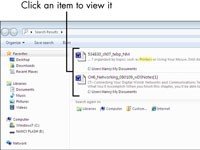
  1. Click an item to view it.

When you locate the file you want, you can double-click it to open it.

Formatting Disk, Copying Files, Printer Setting

Formatting Disk

Disk formatting is the configuring process of a data storage media such as a hard disk drive, floppy disk or flash drive for initial usage. Any existing files on the drive would be erased with disk formatting. Disk formatting is usually done before initial installation or before installation of a new operating system. Disk formatting is also done if there is a requirement for additional storage in the computer.

Disk formatting can be performed on both magnetic platter hard drives and solid-state drives. The formatting comprises low-level formatting, partitioning and high-level formatting. Low-level formatting aids in preparing the physical structure on the storage media. The partitioning process involves the division of the hard drive into logical volumes for data storage. High-level formatting helps in creating the file system format within the logical volume or within the disk partition. Disk formatting is usually done with the help of a disk formatting utility.

While preparing the hard drive for initial use, disk formatting checks for errors in the drive. It can scan and repair bad sectors. Another benefit associated with disk formatting is its capability to erase bad applications and remove sophisticated viruses.

Disk formatting is an action which must be done with caution. As it deletes data and removes programs installed, backup of the necessary data or applications are required. Disk formatting takes time. Frequent disk formatting can gradually decrease the life of a hard drive.

Copying Files

You can copy a file or folder (or groups of files or folders at the same time) to another location on your computer. When you do, the original file or folder stays in the same location, but a duplicate of it is copied to the location you indicate.

In Windows Explorer, select the file, folder, or groups of files and folders you’d like to copy.

You can select multiple files or folders in several ways:

Click the first file or folder you want to select, hold down the Ctrl key, and then click each additional file or folder you want. The selected files are highlighted, and the details pane displays the number of selected items. To unselect one of the selected files, click that file a second time. After selecting all your files, release the Ctrl key.

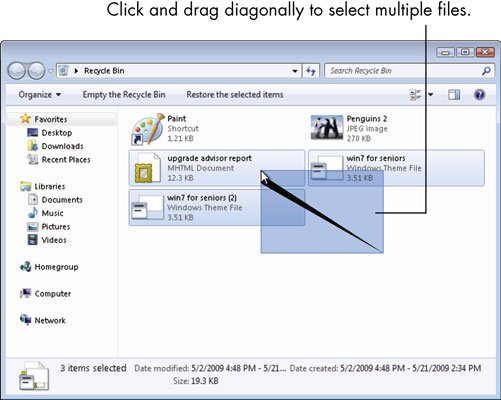
Click an empty part of the content area in Windows Explorer, hold down the left mouse button, and drag the mouse pointer towards the files you want to select. A selection box appears on-screen. Any file or folder that you touch with that selection box becomes selected. You don’t have to surround a file with the box — just touch it.

To select all files inside a folder, open that folder by double-clicking its icon and then press Ctrl+A or choose Organize→Select All.

After selecting multiple files or folders by any method, right-click any of the selected items.

A context menu appears.

Choose Copy

The file or folder is copied. If you selected multiple files or folders, all are copied.

Printer Setting

Opening the print settings window

Launch the HP print driver window from common Windows applications and learn how to navigate the different tabs and menus.

  1. Open the document or photo on your computer, click File or the menu icon , then click Print.

A Print or Print Pictures window or pane opens with general print job settings, including the menu to select the printer you want to print to.

  1. Open Document Properties or Printing Preferences from the main print window or pane to access the HP print driver settings. The button or link name varies depending on the app you are printing from.
  • Microsoft Word: Click Printer Properties
  • Paint and WordPad: Click Preferences
  • Windows Photo Viewer: Click Options… in the lower right corner of the screen, then click Printer Properties… in the Print Settings window
  • Adobe PDF Reader: Click Properties
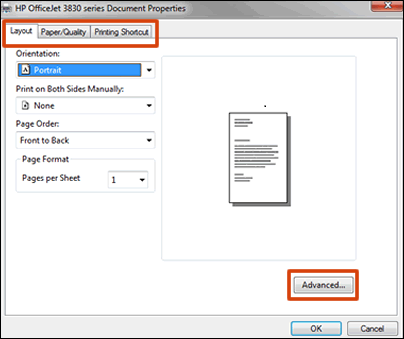
  1. To view the different settings, click the tabs along the top of the window. To access more settings, click the Advanced button that is often located on the Layout tab.

Figure : Example of a printer Document Properties window

  1. If a Printing Shortcut tab is available, click it to use shortcuts that already have essential settings already selected for common print job types. You may also create your own custom shortcut for future print jobs.

Modem Installation, Mouse Installation

  1. Make sure that your modem will work with your Internet subscription. While rare, some modems encounter issues when paired with a specific Internet company (e.g., Comcast). Double-check your modem’s compatibility with your current Internet subscription before buying (if possible).

If you find that your modem won’t work with your current subscription, try to exchange the modem for a different one that will work, or switch your Internet subscription.

  1. Find your room’s cable output. The cable output resembles a metal cylinder with a small hole in the middle and screw threads all around the sides. You’ll usually find cable outputs in the wall near the floor in living rooms and bedrooms.
  2. Decide on a place to mount the modem. The modem should be relatively high up (e.g., on top of a bookshelf), and it will need to be close enough to the cable output that you can connect it without stretching or bending the cable.
  3. Make sure that you have all of the required cables. A modem generally requires a coaxial cable to connect to the cable output, as well as a power cable to connect to an electrical outlet. Both of these cables should come with your modem, but if you bought it used, you may need to find replacement cables.
  • If you plan on attaching the modem to a router, you will also need an Ethernet cable.
  • Consider buying a longer coaxial cable if the one that you have is too short to allow you to mount properly your modem.
  1. Read your modem’s instructions. Each modem is unique, and yours may require additional setup outside of this article’s capacity. Reading your modem’s manual will help make you aware of any additional steps that you have to take to install the modem.

Part II Installing

  1. Attach one end of the coaxial cable to the cable output. The coaxial cable has a connection that resembles a needle on each end. This will plug into the cable output. Make sure that you screw the coaxial cable onto the cable outlet to ensure that the connection is solid.
  2. Attach the other end of the cable to the input on your modem. On the back of the modem, you should see an input that resembles the cable output cylinder. Attach the free end of the coaxial cable to this input, making sure to tighten as needed.
  3. Plug your modem’s power cable into an electrical outlet. A wall socket or a surge protector will do. It’s important to plug the cable into the power outlet before connecting it to the modem, since connecting the power cable to the modem first can cause damage.
  4. Insert the modem power cable’s free end into the modem. You’ll usually find the power cable input port at the bottom of the back of the modem, but check your modem’s documentation to confirm if you can’t find the power port.
  5. Place your modem in its spot. With the cables attached, gently move your modem into its designated position. You shouldn’t feel any resistance from the cables.
  6. Attach the modem to a router. If you have a Wi-Fi router that you want to use in conjunction with your modem, plug one end of an Ethernet cable into the square port on the back of the modem, then plug the other end into the “INTERNET” (or similarly labeled) square port on the back of the router. As long as the router is plugged into a power source, the router should immediately light up.
  • Give your modem and router a few minutes to boot up before attempting to connect to Wi-Fi.
  • You can also connect your computer directly to your modem via Ethernet if you have an Ethernet port enabled computer (ex. A PC or Ethernet Adapter for most Macs)

Today, almost all wired and wireless mice use USB as the interface to the computer. However, older computers may utilize PS/2 or serial ports. If your mouse is wireless, it can be communicating over Bluetooth, RF (radio frequency), or IR(infrared). To proceed, select your connection type from the list below and follow the instructions.

Connecting a wireless USB mouse

A cordless mouse has a small receiver that communicates with the mouse. The receiver connects to the computer via a USB port.

  1. Look for a USB port in the back or on the side of your computer and plug in the receiver.
  2. Once the wireless receiver is connected to the computer, Windows should automatically find and install the appropriate drivers as long as you’re connected to the Internet.
  3. Make sure there are batteries in the mouse or that it is charged.
  4. Next, verify that the mouse is turn on. Many wireless devices have an on and off switch on the bottom of them.

Connecting a wired USB mouse

Connect the USB cable coming from the mouse to one of the USB ports (shown right) on the back or side of your computer. If you are using a USB port hub, connect the mouse cable to that.

After the mouse is connected, the computer should automatically install the drivers and provide basic functionality. If the mouse you want to change how any special buttons work, additional software may need to be installed.

If the mouse is not functioning, see our mouse troubleshooting section.

Connecting a Bluetooth mouse

A Bluetooth mouse connects to a computer wirelessly using a Bluetooth signal. The computer must have built-in Bluetooth or have a Bluetooth adapter connected to it.

To connect a Bluetooth mouse to your computer, follow the steps below.

  • Open the Bluetooth utility on your computer and make sure Bluetooth is turned on. The Bluetooth utility, if enabled, can usually be found in the notification area, with an icon that looks like the Bluetooth symbol.
  • Turn on the mouse if it has an On/Off switch. Check the Bluetooth utility to see if it detects the Bluetooth mouse.
  • When the Bluetooth utility finds the Bluetooth mouse, select the mouse in the Bluetooth device list and click the Pair button.
  • If successful, the mouse will be connected to the computer.

Adding and Removing Programmes

The Add or Remove Programs is a feature in Microsoft Windows that lets a user uninstall and manage the software installed on their computer. This feature was introduced in Windows 98 as Add/Remove Programs, later renamed Programs and Features in Windows Vista and Windows 7, and then Apps & features in Windows 10.

How to open Add or Remove Programs in Windows 10?

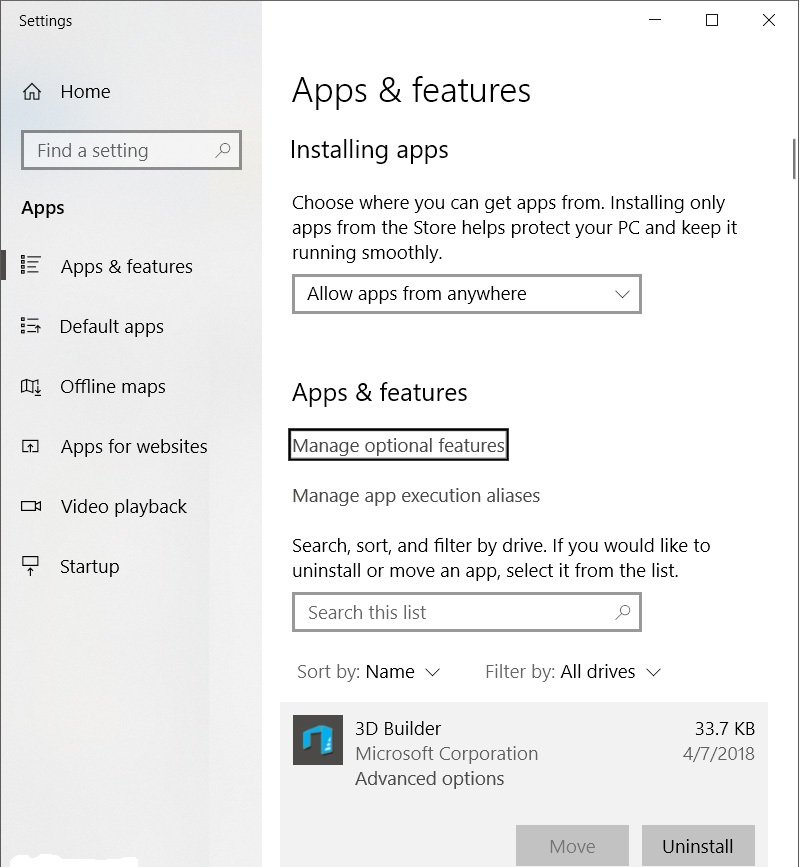
  1. Press the Windows key, type Apps & features or Add or Remove Programs, and press Enter.
  2. A window similar to the picture below should appear.

  1. From this window, you’ll be able to manage how Windows installs programs and also uninstall any programs that have been installed.

or

  1. Open the Control Panel
  2. Click Programs and Features or under the Programs section click Uninstall a program.
  3. From this window, you’ll be able to manage how Windows installs programs and also uninstall any programs that have been installed.

Open Add or Remove Programs in Windows 7 and 8

  1. Open the Control Panel
  2. Under the Programs section, click Uninstall a program.
  3. A window similar to the one shown below should appear with a list of all the programs on your computer.

4. From the Programs and Features section of Windows, you can uninstall a program, adjust Windows features, and view installed updates.

or

  1. Press the Windows key, type Programs and Features or Add and remove programs, then press Enter.
  2. A window similar to that shown above should appear.
  3. From the Programs and Features section of Windows, you can uninstall a program, adjust Windows features, and view installed updates.

Active Desktop Concept

Active Desktop was a feature of Microsoft Internet Explorer 4.0’s optional Windows Desktop Update that allowed users to add HTML content to the desktop, along with some other features. This function was intended to be installed on the then-current Windows 95 operating system. It was also included in Windows 98 and later Windows operating systems up through 32-bit XP, but was absent from XP Professional x64 Edition and all subsequent versions of Windows. Its status on XP 64-bit edition (which was not the same thing as Professional x64 Edition) and on both 32-bit and 64-bit versions of Windows Server 2003 is not widely known. This corresponded to version Internet Explorer 4.0 to 6.x, but not Internet Explorer 7.

HTML could be added both in place of the regular wallpaper and as independent resizable desktop items. Items available on-line could be regularly updated and synchronized so users could stay updated without visiting the website in their browser.

Active Desktop worked much like desktop widget technology in that it allowed users to place customized information on their desktop.

Active Desktop was a Microsoft operating system feature introduced in July 1997, coinciding with the release of Internet Explorer version 4.0. It allowed a user to integrate HTML features in their desktop, either as the desktop wallpaper, or as individual elements similar to widgets. Active Desktop could display the latest news or stock quotes, and was an example of push technology, a short-lived trend of the late 1990s. It also made it possible for animated GIFs to be used as the desktop background.

Active Desktop was first available for Windows 95, then for Windows 98 and the 32-bit version of Windows XP. It was phased out after Internet Explorer version 6.0, coinciding with the introduction of the Windows Sidebar feature in Windows Vista.

History of Active Desktop

The introduction of the Active Desktop marked Microsoft’s attempt to capitalize on the push technology trend led by PointCast. Active Desktop placed a number of “channels” on the user’s computer desktop that provided continually-updated information, such as news headlines and stock quotes, without requiring the user to open a Web browser. However, its most notable feature was that it allowed MJPGs and animated GIFs to animate correctly when set as the desktop wallpaper.

Active Desktop debuted as part of an Internet Explorer 4.0 preview release in July 1997, and came out with the launch of the 4.0 browser in September that year. for Windows 95 and Windows NT 4.0, as a feature of the optional Windows Desktop Update offered to users during the upgrade installation. While the Windows Desktop Update is commonly referred to as Active Desktop itself, it is actually an entire Windows shell upgrade from v4.0 to v4.71, or v4.72, with numerous changes to the Windows interface, resulting in an appearance and functionality level nearly indistinguishable from the then yet-to-be-released Windows 98. Features include the option to allow uppercase filenames (the old v4.0 desktop would forcibly display uppercase filenames in title case), configurable one-click hot-tracking file selection, customizable per-folder HTML display settings, QuickLaunch mini-buttons on the Taskbar next to the Start button, upgraded Start Menu allowing drag and drop item reordering and allowing right-click context menus for item renaming, etc. With the update, Windows Explorer featured an Address bar in which Internet addresses can be entered and seamlessly browsed.

Active Desktop never attained any significant degree of popularity, as its drawbacks included high use of system resources and reduction in system stability. The component was retained in Windows XP but was replaced by a feature named Windows Sidebar in Windows Vista. Sidebar in turn was called Windows Desktop Gadgets in Windows 7, which also allows components to be added to the desktop, but it was also discontinued due to security issues; Windows 8 replaced it with live tiles in the Start screen. Windows Server 2003 R2 32-bit is the most recent Microsoft operating system to support Active Desktop. It appears that the 64-bit version of Windows XP no longer supports Active Desktop. However, it still provides the option to display Web pages and channels built with Microsoft’s Channel Definition Format (CDF) on the desktop.

Winzip and its Application

WinZip is a Windows program that lets you archive and compress files so that you can store or distribute them more efficiently. WinZip is a more capable and easier-to-use Windows equivalent of two earlier programs commonly used in the DOS operating system, PKZIP and PKUNZIP. WinZip has a simple drag-and-drop interface that allows you to view individual files in a zip file without unzipping the file. WinZip will also launch installation programs from a zip file and automatically clean up after the installation.

Feature of Winzip

  • Pack (create) ZIP and Zipx archive files.
  • Unpack BZ2, LHA, LZH, RAR, ZIP, Zipx, 7Z.
  • Decode B64, HQX, UUE files.
  • Configurable Microsoft Windows Shell integration
  • Direct write of archives to CD/DVD
  • Automation of backup jobs
  • Integrated FTP upload
  • Email archives
  • Support for ARC and ARJ archives if suitable external programs are installed.

Zip files compress data and therefore save time and space and make downloading software and transferring e-mail attachments faster. Typical uses for Zip files include:

  • Distributing files on the Internet: Only one download is required to obtain all related files, and file transfer is quicker because the archived files are compressed.
  • Sending a group of related files to an associate: When you distribute a collection of files as a single Zip file, you benefit from the file grouping as well as compression.
  • Saving disk space: If you have large files that are important but seldom used, such as large data files, simply compress the files into a Zip file and then unzip (or “extract”) them only when needed.

To store files in a Zip file, or to access the files in a Zip file, you need a compression utility such as WinZip. WinZip makes it easy for Windows users to work with archives. WinZip features a standard Windows point-and-click drag-and-drop interface for viewing, running, extracting, adding, deleting, and testing files in Zip files. Occasional and first-time users can choose to use the intuitive WinZip Wizard.

For more information on WinZip and how to get WinZip, please see the WinZip product information page.

After you have installed WinZip, you can open a Zip file by double clicking it in your e-mail attachment or Explorer window or by starting WinZip and choosing “Unzip or install from an existing Zip file” in the WinZip Wizard. (If the WinZip Wizard does not open by default when you start WinZip, just click the Wizard button in the toolbar). The WinZip Wizard will guide you through the process of unzipping your file.

Create a Zip file

To create a new Zip file, open WinZip in the WinZip Wizard mode. (If the WinZip Wizard does not open by default, just click the Wizard button in the toolbar.) You will be asked “What do you want to do?” Simply select “Create a new Zip file” and click Next. The WinZip Wizard will guide you through the entire process.

When you become more familiar with Zip file operations, you can also try the WinZip Classic interface. The Classic interface offers many advanced features that are not available in the WinZip Wizard. Using the Classic interface, you can split large Zip files into smaller parts to overcome e-mail and other size limits; view, extract, and run individual files in a Zip file; remove files from an existing Zip file; encrypt your confidential files so that they can’t be used without a password; and much more. To try the Classic interface, simply click the WinZip Classic button in the WinZip Wizard. Extensive program help is available for every aspect of WinZip Classic operation.

Norton Antivirus and its Uses

Norton Antivirus is an anti-virus or anti-malware software product, developed and distributed by Symantec Corporation since 1991 as part of its Norton family of computer security products. It uses signatures and heuristics to identify viruses. Other features included in it are e-mail spam filtering and phishing protection.

Symantec distributes the product as a download, a box copy, and as OEM software. Norton Antivirus and Norton Internet Security, a related product, held a 61% US retail market share for security suites as of the first half of 2007. Competitors, in terms of market share in this study, include antivirus products from CA, Trend Micro, and Kaspersky Lab.

Norton AntiVirus runs on Microsoft Windows, Linux and macOS. Windows 7 support was in development for versions 2006 through 2008. Version 2009 has Windows 7 supported update already. Versions 2010, 2011, and 2012 all natively support Windows 7, without needing an update. Version 12 is the only version fully compatible with Mac OS X Lion. With the 2015 series of products, Symantec made changes in its portfolio and briefly discontinued Norton AntiVirus. This action was later reversed with the introduction of Norton Antivirus Basic.

Uses of Norton Antivirus

  1. Scans Computer for Threats

Norton Antivirus protects your computer by scanning it constantly. It immediately blocks anything trying to enter your computer and asks you for permission to allow it to enter. If it is a virus or a worm or anything that can potentially cause damage, it isolates it immediately and then alerts you. Norton Antivirus also protects you from being infected when you use an instant messaging program. Malicious programs will sometimes try to enter your computer this way, so it is important to stay protected when you chat.

Norton also blocks phishing attempts from websites, which try to gain access to private information such as usernames and passwords to other important websites, such as your bank or your credit card company.

  1. Norton is Automated

Norton Antivirus is automated and it runs as soon as you turn on your computer. It blocks against browser and application threats and also protects you from infected websites. If you are doing any type of Internet research and you click a back link to another site that happens to be infected with a virus or something harmful, you would be alerted immediately and that virus would be quarantined and removed.

  1. Continual Updates

The software is continually updated through the Symantec Live Update function. This means that new viruses unleashed on the Internet will be caught before they damage your computer.

  1. Awards and Certifications

Norton Antivirus is certified by ICSA Labs, a division of Verizon Business. ICSA Labs sets the standards for the compliance of commercial security products. When a company is awarded this certification, it proves that the product has been tested independently and a third party has verified that the software does what it claims.

Norton Antivirus Software also received the VB100 Award from Virus Bulletin. The Virus Bulletin provides independent testing of anti-virus products and compares them to other industry products. Once an anti-virus software receives this award, it proves that it has been tested by a third party. VB100 insists that a software prove it detects “in the wild” viruses and also generates no false positives during a scan of clean files.

Use of Calculators, Paintbrush, Winmap MPEG Player, Window Help

Use of Calculators

A calculator is a small hand-held computer that performs mathematical calculations. Some calculators even permit simple text editing and programming.

It is also a program on a computer that simulates a hand-held calculator. Calculator programs let you perform simple math calculations without leaving the computer. The Apple Macintosh comes with a calculator desk accessory. Likewise, Microsoft Windows includes a calculator accessory.

Use of Paintbrush

A paintbrush is a tool found in image editing and paint programs that allows users to digitally “paint” on an image file. This feature enables users to make edits to an image, like giving a picture a mustache or create something new on a blank page. The image shows an example of what the paintbrush icon looks like in many programs.

Paintbrush is also the name of a free, open-source raster image editing program; similar to Microsoft Paint.

Use of Winmap MPEG Player

Winamp is a media player for Windows, macOS and Android, originally developed by Justin Frankel and Dmitry Boldyrev by their company Nullsoft, which they later sold to AOL in 1999 for $80 million. It was then acquired by Radionomy in 2014. Since version 2 it has been sold as freemium and supports extensibility with plug-ins and skins, and features music visualization, playlist and a media library, supported by a large online community.

Version 1 of Winamp was released in 1997, and grew quickly popular with over 3 million downloads, paralleling the developing trend of MP3 (music) file sharing. Winamp 2.0 was released on September 8, 1998. The 2.x versions were widely used and made Winamp one of the most downloaded Windows applications. By 2000, Winamp had over 25 million registered users and by 2001 it had 60 million users.

A poor reception to the 2002 rewrite, Winamp3, was followed by the release of Winamp 5 in 2003, and a later release of version 5.5 in 2007.

Features of Winmap MPEG Player

  1. Playback formats

Winamp supports music playback using MP3, MIDI, MOD, MPEG-1 audio layers 1 and 2, AAC, M4A, FLAC, WAV, and WMA. Winamp was one of the first widely used music players on Windows to support playback of Ogg Vorbis by default. It supports gapless playback for MP3 and AAC and ReplayGain for volume leveling across tracks. CD support includes playing and importing music from audio CDs, optionally with CD-Text, and burning music to CDs. The standard version limits maximum burn speed and datarate; the “Pro” version removes these limitations. Winamp supports playback of Windows Media Video and Nullsoft Streaming Video. For MPEG Video, AVI, and other unsupported video types, Winamp uses Microsoft’s DirectShow API for playback, allowing playback of most of the video formats supported by Windows Media Player. 5.1 Surround sound is supported where formats and decoders allow.

  1. Media Library

At installation, Winamp scans the user’s system for media files to add to the Media Library database. It supports full Unicode filenames and Unicode metadata for media files. In the Media Library user interface pane, under Local Media, several selectors (Audio, Video, date, and frequency) permit display of subsets of media files with greater detail.

  1. Adding album art and track tags

Get Album Art permits retrieval of cover art, and confirmation before adding the image to the database. Autotagging analyzes a track’s audio using the Gracenote service and retrieves the song’s ID2 and ID3 metadata.

  1. Podcatcher

Winamp can also be used as an RSS media feeds aggregator capable of displaying articles, downloading, or playing such content as streaming media. SHOUTcast Wire provides a directory and RSS subscription system for podcasts.

  1. Media player device support

Winamp has extendable support for portable media players and Mass Storage Compliant devices, Microsoft PlaysForSure, and ActiveSync, and syncs unprotected music to the iPod.

  1. Media Monitor

Winamp Media Monitor allows web-based browsing and bookmarking music blog websites and automatically offering for streaming or downloading all MP3 files there. The Media Monitor is preloaded with music blog URLs.

  1. Winamp Remote

Winamp Remote allows remote playback (streaming) of unprotected media files on the user’s PC via the Internet. Remote adjusts bitrate based on available bandwidth, and can be controlled by web interface, Wii, PlayStation 3, Xbox 360, and mobile phones.

  1. Plug-ins

In February 1998, Winamp was rewritten as a “general-purpose audio player” with a plug-in architecture. This feature was received well by reviewers. Development was early, diverse, and rapid: 66 plugins were published by November 1998. The Winamp software development kit (SDK) allows software developers to create seven different types of plug-ins.

  • Input: decodes specific file formats.
  • Output: sends data to specific devices or files.
  • Visualization: provides sound activated graphics.
  • DSP/Effect: manipulates audio for special effects.
  • General Purpose plug-ins add convenience or UI features (Media Library, alarm clock, or pause when logged out).
  • Media Library plug-ins add functions to the Media Library plug-in.
  • Portables plug-ins support portable media players.
  1. Skins

Skins are bitmap files which alter the aesthetic design of the Winamp graphical user interface (GUI) and can add functionality with scripting. Winamp published documentation on skin creation in 1998 with the release of Winamp 2 and invited Winamp users to publish skins on Winamp.com. As of 2000 there were nearly 3,000 Winamp skins available. The ability to use skins contributed to Winamp’s popularity early in MP3 development. With the increasing number of available skins, genres or categories of skins developed, such as “Stereo”, “Anime”, and “Ugly”. Online communities of skin designers such as 1001Skins.com and Skinz.org have contributed thousands of designs; also at GnomeArt. Designers see skins as an opportunity to be creative: nontraditional examples have included Klingon, iPod, and Etch-a-sketch designs. The Winamp skin format is the most popular, the most commonly adopted by other media player software, and is usable across platforms. One example is the XMMS player for Linux and Unix systems, which can use unmodified Winamp 2 skin files. Winamp 5 supports two types of skins – “classic” skins designed to Winamp 2 specifications (static collections of bitmap images), and more flexible, freeform “modern” skins per the Winamp3 specification. Modern skins support true alpha channel transparency, scripting control, a docked toolbar, and other innovations to the user interface.

Use of Windows Help

Microsoft WinHelp is a proprietary format for online help files that can be displayed by the Microsoft Help browser winhelp.exe or winhlp32.exe. The file format is based on Rich Text Format (RTF). It remained a popular Help platform from Windows 3.0 platform through Windows XP. WinHelp was removed in Windows Vista purportedly to discourage software developers from using the obsolete format and encourage use of newer help formats.

Computer and Related Terminology

Computers are an integral part of every part of human life. A computer in itself is a wide term. It includes various concepts, terms, and terminologies. It is very essential to understand each and every component of a computer and its terminologies to understand a computer as a whole. In this article, we will look at the most basic computer terminology.

Basic Computer Terminologies

  1. CPU

CPU means ‘Central Processing Unit’. This is the place of computer data handling. Moreover, it does all the data manipulation, calculations and formatting data for output. Hence, whenever someone buys a computer he/she becomes more conscious about the CPU and its capabilities.

The execution of the instructions within the computer system is very fast. It measures it in cycles of time and refers it to as megahertz. That’s why the ‘Mhz’ of a computer’s processor is sometimes referred to as the clock speed. Think about CPUs (and aligned circuitry) beating like a heart, this pulsing/beating is expressed as “MHz” e.g. 2000Mhz.

  1. RAM

Specifically, RAM stands for “Random Access Memory” or “Ready Access Memory”. It is a temporary notepad where your computer sends information to disk, or to the storage place of instructions from other input devices. The term “random access” indicates that memory locations in RAM are accessible in any order unlike sequential access of a data cassette tape.

  1. Hard-disk Drive

Your computers hard disk drive is like an audio CD that you possess at home – except your computer can read and write to it. In other words, your computer can take data from your hard drive (to process it in the CPU or place it in RAM to work with).

Also, it can record the results of the work it does back to the disk, which is “writing to disk”. The abbreviation HDD stands for “hard disk drive”.

If you open your HDD, you would find a pancake stack on double-sided disks.

  1. Floppy Disk

You can also read and write data in a floppy disk. Simply, it is smaller than HDD and portable – you can take it to another computer and read from it there also. Floppy disks are sometimes called “secondary storage devices”. They were known as ‘floppy’ originally because they were 5¼ inches in width and floppy. They could carry almost 720kb of data. Today, however floppy disks are smaller, rigid, and can carry more data like 1.44Mb.

  1. Hardware

Hardware is the term referring to all the physical parts in a computer system. It includes the monitor, the keyboard, the mouse, the main case which stores the RAM, CPU and the motherboard.

  1. Software

‘Software’ is the term which refers to the instructions needed to make a computer work. It is intangible in nature. The software is also known as a “program”. Also, it is a set of computer files which are used to perform various actions on the computer. You can have a program for ‘word processing’. The software can be transferred to a compact disk and floppy disks, but usually, sit on the computers hard drive waiting to be “run”.

Computer Hardware

CENTRAL PROCESSING UNIT (CPU)

Central processing unit (CPU) is the central component of the Computer System. Sometimes it is called as microprocessor or processor. It is the brain that runs the show inside the Computer. All functions and processes that is done on a computer is performed directly or indirectly by the processor. Obviously, computer processor is one of the most important element of the Computer system. CPU is consist of transistors, that receives inputs and produces output. Transistors perform logical operations which is called processing. It is also, scientifically, not only one of the most amazing parts of the PC, but one of the most amazing devices in the world of technology.

Motherboard

Alternatively referred to as the mb, mainboard, mboard, mobo, mobd, backplane board, base board, main circuit board, planar board, system board, or a logic board on Apple computers. The motherboard is a printed circuit board and foundation of a computer that is the biggest board in a computer chassis. It allocates power and allows communication to and between the CPU, RAM, and all other computer hardware components.

A motherboard provides connectivity between the hardware components of a computer, like the processor (CPU), memory (RAM), hard drive, and video card. There are multiple types of motherboards, designed to fit different types and sizes of computers.

Each type of motherboard is designed to work with specific types of processors and memory, so they are not capable of working with every processor and type of memory. However, hard drives are mostly universal and work with the majority of motherboards, regardless of the type or brand.

Microprocessor

Microprocessor is a controlling unit of a micro-computer, fabricated on a small chip capable of performing ALU (Arithmetic Logical Unit) operations and communicating with the other devices connected to it.

Microprocessor consists of an ALU, register array, and a control unit. ALU performs arithmetical and logical operations on the data received from the memory or an input device. Register array consists of registers identified by letters like B, C, D, E, H, L and accumulator. The control unit controls the flow of data and instructions within the computer.

How does a Microprocessor Work?

The microprocessor follows a sequence: Fetch, Decode, and then Execute.

Initially, the instructions are stored in the memory in a sequential order. The microprocessor fetches those instructions from the memory, then decodes it and executes those instructions till STOP instruction is reached. Later, it sends the result in binary to the output port. Between these processes, the register stores the temporarily data and ALU performs the computing functions.

List of Terms Used in a Microprocessor

Here is a list of some of the frequently used terms in a microprocessor −

  • Instruction Set − It is the set of instructions that the microprocessor can understand.
  • Bandwidth − It is the number of bits processed in a single instruction.
  • Clock Speed − It determines the number of operations per second the processor can perform. It is expressed in megahertz (MHz) or gigahertz (GHz).It is also known as Clock Rate.
  • Word Length − It depends upon the width of internal data bus, registers, ALU, etc. An 8-bit microprocessor can process 8-bit data at a time. The word length ranges from 4 bits to 64 bits depending upon the type of the microcomputer.
  • Data Types − The microprocessor has multiple data type formats like binary, BCD, ASCII, signed and unsigned numbers.

Features of a Microprocessor

Here is a list of some of the most prominent features of any microprocessor −

  • Cost-effective: The microprocessor chips are available at low prices and results its low cost.
  • Size: The microprocessor is of small size chip, hence is portable.
  • Low Power Consumption: Microprocessors are manufactured by using metaloxide semiconductor technology, which has low power consumption.
  • Versatility: The microprocessors are versatile as we can use the same chip in a number of applications by configuring the software program.
  • Reliability: The failure rate of an IC in microprocessors is very low, hence it is reliable.

The Intel Pentium III AMD

The Pentium III model, introduced in 1999, represents Intel’s 32-bit x86 desktop and mobile microprocessors in accordance with the sixth-generation P6 micro-architecture.

The Pentium III processor included SDRAM, enabling incredibly fast data transfer between the memory and the microprocessor. Pentium III was also faster than its predecessor, the Pentium II, featuring clock speeds of up to 1.4 GHz. The Pentium III included 70 new computer instructions which allowed 3-D rendering, imaging, video streaming, speech recognition and audio applications to run more quickly.

The Pentium III processor was produced from 1999 to 2003, with variants codenamed Katmai, Coppermine, Coppermine T and Tualatin. The variants’ clock speeds varied from 450 MHz to 1.4 GHz. The Pentium III processor’s new instructions were optimized for multimedia applications called MMX. It supported floating-point units and integer calculations, which are often required for still or video images to be modified for computer displays. The new instructions also supported single instruction multiple data (SIMD) instructions, which allowed a type of parallel processing.

Other Intel brands associated with the Pentium III were Celeron (for low-end versions) and Xeon (for high-end versions).

Cyrix

Cyrix Corporation was a microprocessor developer that was founded in 1988 in Richardson, Texas, as a specialist supplier of math coprocessors for 286 and 386 microprocessors. The company was founded by Tom Brightman and Jerry Rogers. Cyrix founder, President and CEO Jerry Rogers, aggressively recruited engineers and pushed them, eventually assembling a small but efficient design team of 30 people.

Cyrix merged with National Semiconductor on 11 November 1997.

The first Cyrix product for the personal computer market was a x87 compatible FPU coprocessor. The Cyrix FasMath 83D87 and 83S87 were introduced in 1989. The FasMath provided up to 50% more performance than the Intel 80387. Cyrix FasMath 82S87, a 80287-compatible chip, was developed from the Cyrix 83D87 and has been available since 1991.

MMX Technology

MMX is a Pentium microprocessor from Intel that is designed to run faster when playing multimedia applications. According to Intel, a PC with an MMX microprocessor runs a multimedia application up to 60% faster than one with a microprocessor having the same clock speed but without MMX. In addition, an MMX microprocessor runs other applications about 10% faster, probably because of increased cache. All of these enhancements are made while preserving compatibility with software and operating systems developed for the Intel Architecture.

MMX is a single instruction, multiple data (SIMD) instruction set designed by Intel, introduced in January 1997 with its P5-based Pentium line of microprocessors, designated as “Pentium with MMX Technology”. It developed out of a similar unit introduced on the Intel i860, and earlier the Intel i750 video pixel processor. MMX is a processor supplementary capability that is supported on recent IA-32 processors by Intel and other vendors.

The New York Times described the initial push, including Super Bowl ads, as focused on “a new generation of glitzy multimedia products, including videophones and 3-D video games.”

MMX has subsequently been extended by several programs by Intel and others: 3DNow!, Streaming SIMD Extensions (SSE), and ongoing revisions of Advanced Vector Extensions (AVX).

error: Content is protected !!